

32-Bit Float Export: When to Use It and When Not To
Last Edited: Oct 23, 2026
Export in 32-bit float when the file moves to another stage of production, such as a mastering engineer, a mixing collaborator, or a video editor. Export in 24-bit with dither for a final deliverable. A 32-bit float file keeps your mix as it left the DAW, including peaks above 0 dBFS, which is why it is the safest handoff format. It is not a magic quality upgrade, and it is not the right file for every destination.
Below you will find what the format actually stores, the situations where it earns its larger file size, the ones where it causes trouble, and a clear checklist you can run before you hit Export.
TL;DR
- Choose 32-bit float for intermediate files: stems, unlimited mixes for mastering, and files headed to other DAWs or video editors.
- Choose 24-bit (dithered, with peaks below 0 dBFS) for final deliverables unless the recipient asks for float.
- Float protects you from clipping inside files and processing chains. It cannot rescue a signal that already clipped at the preamp or converter.
- 32-bit float files are about a third larger than 24-bit files, and some older software misreads them. Confirm with the recipient first.
- Keep your session’s sample rate. Switching bit depth does not add detail that was never recorded.
What 32-Bit Float Actually Stores
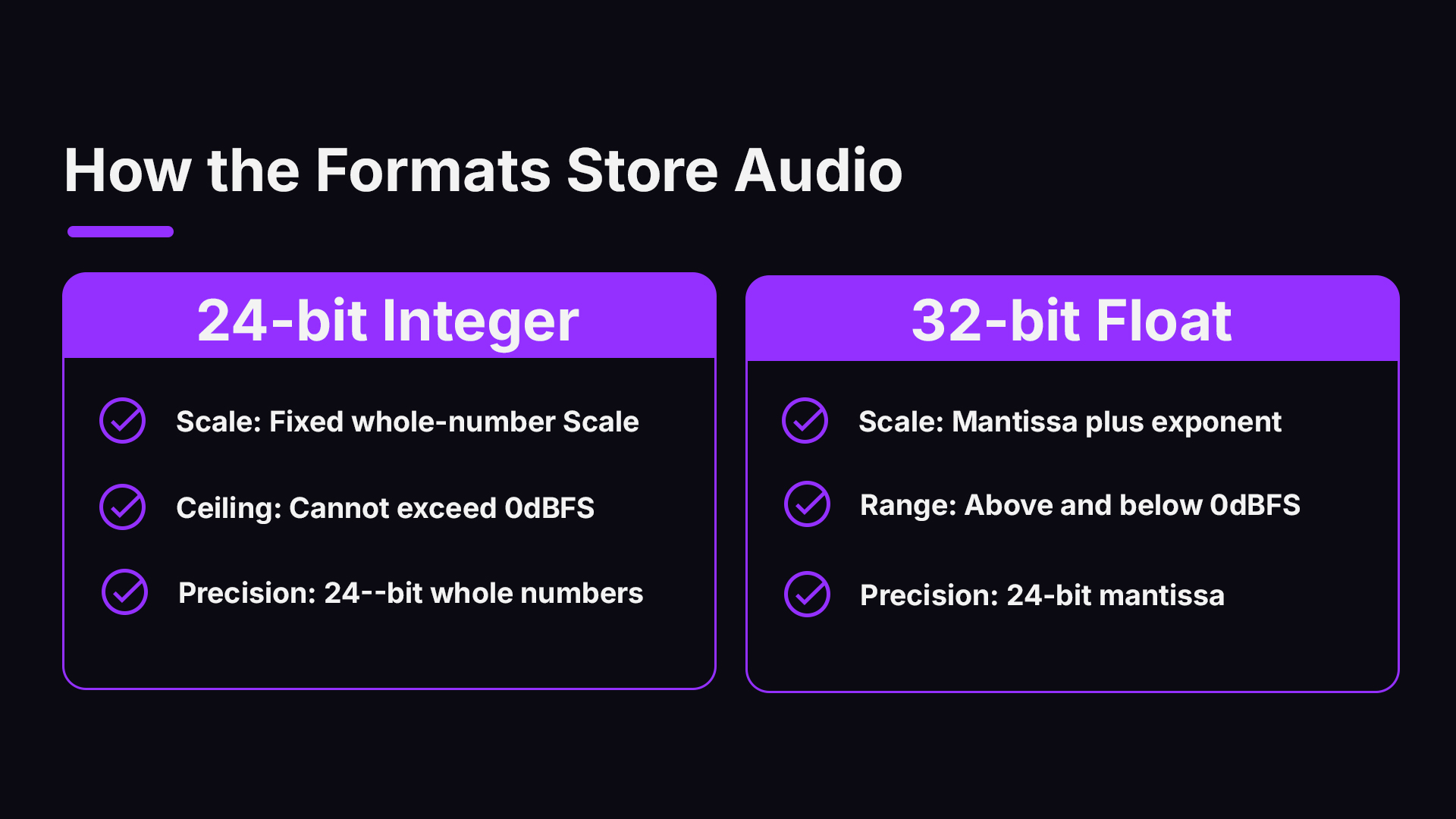
A 24-bit integer file stores each sample as a whole number on a fixed scale. The top of that scale is 0 dBFS. Nothing can go above it. A 32-bit float file stores each sample in floating-point notation: a mantissa (the detail) plus an exponent (the scale). Because the scale can shift, the format can hold levels far above and far below the usual 0 dBFS ceiling without losing the waveform's underlying shape.
That is why Sound Devices calls 32-bit float an ideal recording format for ultra-high-dynamic-range work. Its main benefit is capturing very loud and very quiet signals in the same file.
The mantissa in a 32-bit float still provides 24 bits of precision. So you are not gaining finer resolution at a given level. You gain headroom and freedom from rounding at every stage of processing.
The practical translation: the format is built for working, not for listening. Your ears, your speakers, and every streaming service end up with a fixed-point signal. Float matters most in the middle of the chain.
Why Float Helps While You Work
Every time audio passes through a plugin, gain stage, or bounce at fixed-point precision, tiny rounding errors can pile up. A float pipeline keeps precision high between stages. The Sonarworks guide to bit depth makes the same point from the mixing and mastering side: when you build a session at 24-bit or 32-bit float, you give processing room to work.
The real value shows up when you do heavy work:
- Stacked EQ, compression, and saturation on one bus
- Big gain moves, such as pulling a very quiet stem up 30 dB
- Automation that pushes a track over 0 dBFS before a later stage brings it back down
- Rendering the same file several times, as in a revision-heavy film or game audio job
A useful way to think about it: 32-bit float is insurance. Professionals describe it as protection against internal clipping, not a replacement for gain staging. You still want clean levels at every point, because you will be mixing by ear and your plugins react to what they receive.
If you want a refresher on what clipping does to a signal, our guide to audio clipping walks through the sound and the waveform.
When to Export 32-Bit Float
Sending an unlimited mix to mastering
This is the most common reason. If your mix bus is running hot, or you want the mastering engineer complete freedom, a float file lets peaks exceed 0 dBFS. Mastering houses accept it: Mindtree Mastering lists WAV and AIFF at 16, 24, and 32-bit float, at sample rates from 44.1 kHz up to 192 kHz.
Still, read the delivery instructions each time. Many engineers prefer a 24-bit mix with a few dB of headroom. The same page asks for stereo interleaved files, so do not send split mono unless told.
Handing off Stems to Another Producer or Mixer
Stems are works in progress. Another person will process them, probably push levels around, and bounce again. Float keeps your original balance intact, no matter what happens to the level. If you collaborate remotely, this is a perfect fit: both sides keep their quality through revision rounds.
Moving Audio Between DAWs and Video Editors
Many editing programs work internally in float. The Sound Devices compatibility table for 32-bit float files shows which applications accept float files in and out, and the list is not universal. Some apps handle it in both directions, while at least one major editor does not. Check the table for your specific software and version before you commit to a delivery format.
Archiving a Final Mix at Full Session Resolution
A float master copy makes sense as an archive, because you can always derive a 24-bit or 16-bit version later. Keep the float file as your source of truth and make dithered copies for release.
When to Choose 24-Bit Instead
Final Deliverables and Streaming Uploads
Distributors, aggregators, and streaming platforms generally ask for 16-bit or 24-bit PCM. No one will listen to a float file, and many upload tools will refuse it or convert it on their end, so you lose control over how that conversion happens. Upload specs change, so check your distributor’s current requirements. For a wider look at loudness targets and platform behavior, read our mastering for streaming guide.
Recipients With Older Software
Not every application reads float the same way. Some older programs, or those that aren't float-native, can misinterpret a 32-bit float file. If the signal exceeds 0 dBFS, you may hear digital clipping or even silence. This is documented in the same Sound Devices application notes. When you send files to a client, ask what they will open them in.
Storage- And Bandwidth-Limited Jobs
The arithmetic is simple: 32 bits versus 24 bits means about a third more data. On a 40-track session at 96 kHz, that adds up quickly, both on disk and when uploading. If you are sending a full set of stems over a slow connection, 24-bit may be the smarter call, provided nothing in the stems peaks above 0 dBFS.
The Dither Question
When you reduce bit depth, the system rounds each sample to the nearest available value. Plain truncation creates distortion that is correlated with the signal. Dither adds a tiny amount of noise to turn that distortion into a steady, harmless noise floor. The AES paper The Gentle Art of Dithering covers the theory, including why triangular (TPDF) dither is a standard choice.
What that means for your export:
- Going to 24-bit? Dither is optional in practice, since the noise floor is extremely low, but applying it once at the very end is good housekeeping.
- Going to 16-bit? Always dither once, as the final step.
- Staying at 32-bit float? No dither needed. Nothing is being rounded down.
- Never dither twice. Stack two dither stages, and you add noise for no benefit.
This is one of the best arguments for float handoffs: the recipient does the final reduction with their own dither, and nobody has to remember who did what.
What 32-Bit Float Will Not Fix
Clipping that happened before the file
A float file is immune to clipping once the audio is in the file. It does not travel back in time. If your preamp or converter clipped on the way in, the damage is baked in. As Sound Devices notes, a recording system's input stage can clip before the signal ever reaches the file. Keep gain staging your analog inputs.
Clipping that happens later
Your float file may hold a peak at +6 dBFS without trouble, but the moment that signal hits a fixed-point DAC, an MP3 encoder, or a consumer app, it will clip. A float export of an over-the-top master is a deferred problem, not a solved one. A limiter at the end of a mastering chain is what actually brings peaks under the ceiling for release.
Low-resolution source material
If a client sends you a 16-bit file, converting it to 32-bit float does not restore anything. It does, however, give your processing room, which is the reason the Sonarworks article recommends opening such material in a higher-resolution session. The file you export afterward will be cleaner to work with, but the source detail is what it is. Our overview of audio formats and file types, plus the primer on lossless and lossy formats, explains what each format keeps and what it discards.
Bit Depth at a Glance
| Format | Best for | Headroom above 0 dBFS | Dither needed | File size vs 24-bit |
|---|---|---|---|---|
| 16-bit PCM | CD, some distributors | None | Yes | Smaller (two-thirds) |
| 24-bit PCM | Final masters, stems with headroom | None | Optional | Baseline |
| 32-bit float | Mix handoffs, stems, archives, video workflows | Yes | No | About a third larger |
Perspective: Why We Treat Float as a Handoff Format
We build SoundBridge around the idea that a session is a conversation between people, often in different cities. That shapes how we think about export. The best file is the one that lets the next person do their job without guessing what you did.
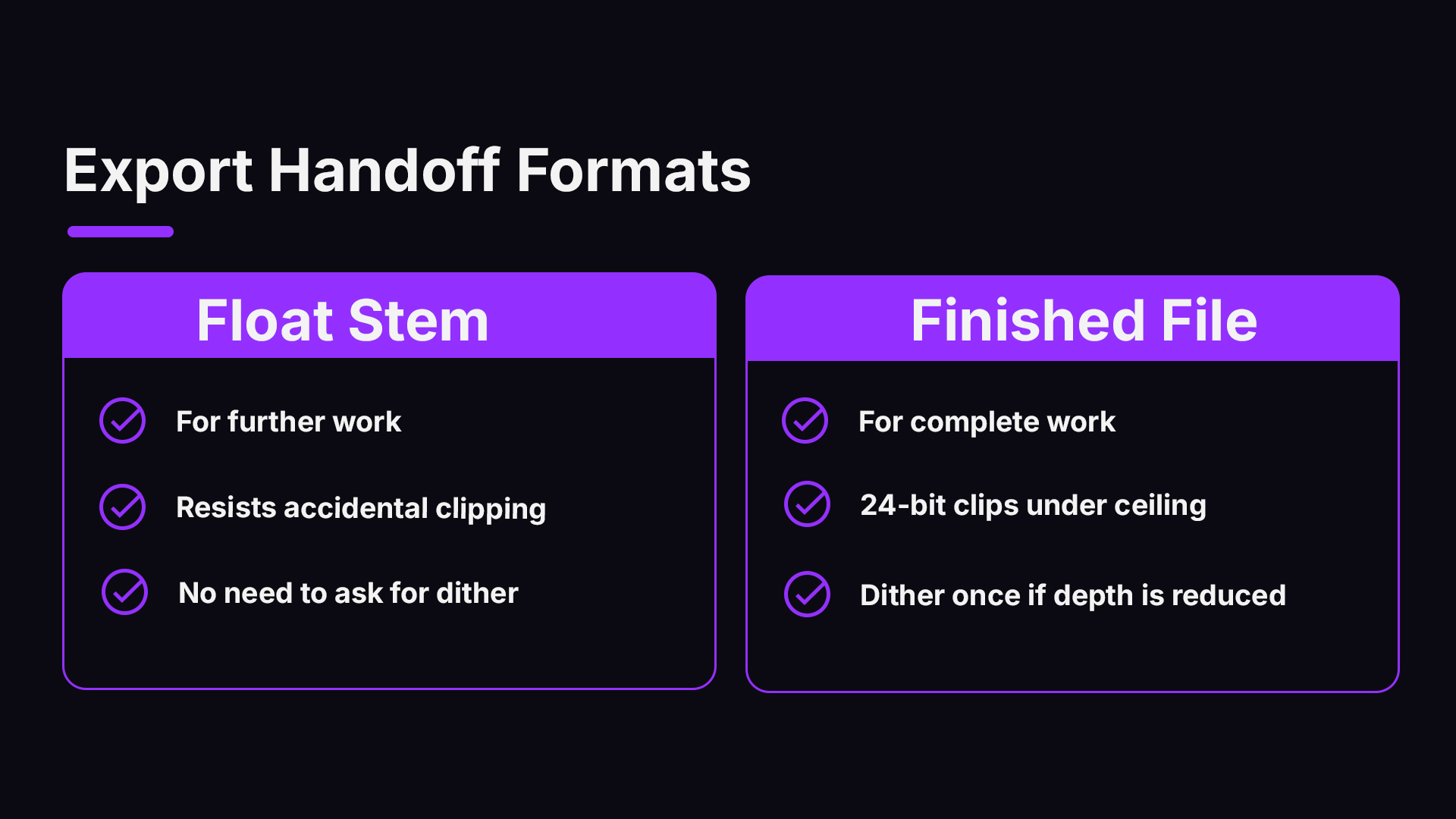
That is why we lean on float for anything that will be touched again. In most cases, level changes don't clip float stems, and nobody has to ask whether dither was already applied. For anything finished, we want a plain, universally readable file: 24-bit, peaks safely under the ceiling, dithered once if the depth is reduced.
Our honest advice is to treat the export dialog as a communication tool. Before you press the button, ask one question: who opens this file next, and in what? Everything else follows from the answer. If you do not know, ask. A thirty-second message saves a day of confusion.
Float is also not a substitute for good habits. Keep your channel meters out of the red, trim hot tracks at the source, and leave your master bus a few dB of room. Float then becomes a backup, not a crutch. You will mix better, and your handoffs will survive whatever the next person does.
— Wake
A Pre-Export Checklist
Run through this each time you bounce something important.
- Name the destination. Mastering, collaborator, video editor, distributor, archive?
- Read the spec. If the recipient states a format, use it. Mindtree-style intake pages list exact bit depths and sample rates.
- Keep the session sample rate. Do not up-convert on export. If your project runs at 48 kHz because it is going to picture, leave it there.
- Pick the bit depth. Float for intermediate, 24-bit for finished, 16-bit only when a format requires it.
- Check the peaks. For 24-bit or 16-bit files, make sure the loudest sample is below 0 dBFS, leaving headroom if you'll encode to a lossy format later.
- Dither once, last. Only when reducing bit depth.
- Listen back. Import the exported file into a fresh session and play it through. Compare against the original mix, and look at the waveform for flat tops.
- Label it. Put the bit depth, sample rate, and any limiter settings in the file name or a note. For example:
Song_Mix_v3_48k_32f_NoLimiter.wav.
If loudness is on your mind, our tips on maximizing loudness explain how to get there without squashing the life out of the mix.
Try It in SoundBridge
If you want a DAW built around handing sessions back and forth, SoundBridge runs on Mac and Windows, supports sample rates up to 192 kHz, and includes remote collaboration with live tracking. You can start with the free version and move up to Premium or a Lifetime License when you need more. Review the plans on the SoundBridge site, or see how remote sessions work in our virtual collaboration guide. Whatever DAW you use, check its export dialog for the exact file types it offers.
Common Scenarios, Answered
You are sending a mix to a mastering engineer who did not specify. Ask. If you cannot, send 24-bit with at least a few dB of headroom, and offer the float version too. That covers both preferences.
You are delivering to a film editor. Find out whether their editor reads float. Some do, some do not, as the compatibility table shows. If in doubt, deliver 24-bit at the picture’s sample rate (commonly 48 kHz for video work) with peaks controlled.
You recorded in 32-bit float on a field recorder. Keep the originals untouched. Import them, edit, then export processed stems in whichever format the next stage wants.
You are tempted to export float ‘for quality’ on a final release. Skip it. The listener will never hear a difference, and the platform will convert it anyway.
You want to repair a clipped recording by exporting float. It will not work. Clipping already in the audio stays clipped, and a declipping tool is the only route. Our clipping guide explains the options.
FAQ
Is 32-bit float export better quality than 24-bit?
Not in a way you can hear on playback. The mantissa is 24 bits in both cases, so the detail at a given level is equivalent. The advantage is headroom and protection from rounding and clipping during further processing, which matters for files you'll work on again.
Should I export 32-bit float for streaming platforms?
No. Upload a 16-bit or 24-bit file, or whatever your distributor specifies. If you send float, the platform will convert it using its own settings, and you lose control over dithering and peak handling. Check the distributor’s current guidelines before uploading.
Do I need to dither a 32-bit float export?
No. Dither belongs when you reduce bit depth, such as going to 24-bit or 16-bit. Apply it once as the last step and never twice.
Why does my 32-bit float file sound clipped or silent in another program?
The program may not decode float files properly, especially if the signal exceeds 0 dBFS. Open the file in a float-capable DAW, or re-export as 24-bit with the peaks brought under the ceiling. Compatibility varies by application and version, so check its documentation.
Does 32-bit float make files bigger?
Yes, by about a third compared with 24-bit at the same sample rate and channel count, since each sample uses 32 bits instead of 24. On large multitrack sessions or long field recordings, that difference is noticeable when you store and upload.
Sources
MASTER MUSIC PRODUCTION
Expert-led courses designed to take you from fundamentals to finished tracks.

HOUSEFrom bouncy bass and solid kicks, this course teaches you the most modern House music production techniques needed to succeed and stand out.

TRAPQuit sounding like generic Trap and produce something World with hints of the Far East. Create ethnic soundscapes to put your Trap ahead of the curve.

AMBIENTProduce relaxing, sophisticated psy-influenced ambient. Psychedelic and relaxing to listen to, create meditative soundscapes to put your listeners in Zen.