

Cloud Stems Management: The Workflow That Stops Version Chaos
Last Edited: Aug 31, 2026

Cloud stems management means exporting, versioning, syncing, and archiving your multitrack stems so collaborators can work reliably across DAWs, cities, and time zones. The workflow that actually holds up under deadline pressure runs one direction: produce locally, export clean stems, upload them to a single shared cloud root, log the change in a changelog, then archive the milestone offline. Skip a step, and you’re the one hunting for “FINAL_v2_actualfinal.wav” at 2 a.m.
Here’s the sequence worth memorizing:
- Produce and mix inside your DAW, where you have full control and zero latency.
- Export stems using a locked spec (sample rate, bit depth, bar 1 start).
- Push to one cloud root folder, never scattered links.
- Update the changelog with what changed and why.
- Zip and archive the milestone before you move on.
Platforms like SoundBridge and structured async handoff checklists exist precisely to make this loop fast instead of frustrating.
Key Takeaways
Reliable cloud stems management depends on locking export specs, using a single shared folder with a changelog, and keeping a separate offline archive so no single cloud account failure can erase a project.
| Point | Details |
|---|---|
| Lock the export spec | Match sample rate and bit depth, start at bar 1, and print effects that matter to the sound. |
| Use one shared root | A 01_Project through 99_Archive structure with two-digit prefixes keeps sorting predictable. |
| Log every version change | A changelog with date, author, change, and justification beats guessing which file is current. |
| Separate sync from backup | Active cloud folders, a version archive, and an offsite backup form three distinct layers of safety. |
| Verify before you trust it | Null tests targeting strong cancellation and checksum checks catch asset drift before mixdown. |
| Use a coordination layer built for this | SoundBridge’s zero-latency sync and 192kHz support keep the workflow’s cloud and review steps fast without sacrificing fidelity. |
What Does a Cloud Stems Management Workflow Look Like?
Five steps make up the entire process, and each has a clear owner. Skip the ambiguity about who’s responsible for what, and half your version conflicts disappear before they start.
- Produce and print — the producer builds the session and prints stems inside the DAW. This stays local; the cloud never touches raw production.
- Export and package — the same producer bounces stems to a locked spec and drops them into the shared root, not a personal folder.
- Sync and notify — the release engineer or lead collaborator confirms the upload landed cleanly and flags the team.
- Review and log — collaborators pull stems, work async, and each one updates the changelog with their initials and a one-line note.
- Archive the milestone — once a version is locked, someone zips it into the offline archive so it survives account issues down the road.
The DAW handles sonic decisions. The cloud handles coordination. The archive handles insurance. Confusing those three roles is what turns a simple beat exchange into a week of “which file is current” messages. This mirrors what hybrid collaboration guides recommend: produce locally, coordinate in the cloud.
SoundBridge fits directly into steps one through three. Its zero-latency remote tracking and studio-accurate sync mean a collaborator in another time zone can hear your session evolve in real time, not just download a stale bounce.
Pro Tip: Assign one person as the “sync owner” for each project. When everyone assumes someone else uploaded the final stem, that’s when versions go missing.
What Export Settings Keep Stems Compatible Across DAWs?
Stems that open cleanly in someone else’s session start with a locked export spec, not a guess. Mismatched sample rates and inconsistent start points cause more remote-collaboration headaches than any plugin compatibility issue ever will.
- Match the project’s native sample rate and bit depth (typically 44.1kHz/24-bit or 48kHz/24-bit) rather than converting on export, which can introduce artifacts.
- Start every stem at bar 1, with consistent pre-roll and post-roll, so imports line up automatically without manual nudging.
- Print effects that are part of the creative identity (saturation, key delays, character compression) rather than leaving them dry and assuming the receiver will recreate your chain.
- Bundle stems as a single zipped folder rather than individual email attachments or scattered share links.
Collaboration playbooks consistently point to these same rules for remote beat exchanges. A stem exported from bar 1 with consistent pre-roll is the difference between a five-minute import and a twenty-minute troubleshooting session over which track starts where.
How Should You Name Files and Structure Folders?
A predictable folder structure prevents the single most common cloud stems failure: someone can’t find the current version, so they work off an old one. The fix is a simple root template with two-digit prefixes that enforce a consistent sort order across all operating systems and cloud clients:
01_Project— the working DAW session file and any project-specific notes.02_Stems— exported stems, organized by version subfolder (v01, v02, v03).03_References— reference bounces, mix notes, and client feedback.99_Archive— zipped milestone snapshots, never touched during active work.
Two-digit prefixes exist because alphabetical sorting breaks the moment you hit ten versions. Ghost production workflow guides recommend this exact numbering scheme to keep folders predictable across platforms.
For filenames, use a fixed template: ProjectName_TrackRole_v03_2026-02-14.wav. Mark wet stems with _wet, dry stems with _dry, and reference bounces with _ref so nobody has to open a file to know what it is.

How Do You Version Stems Without “FINAL_v2” Chaos?
The rule is simple: increment the version number whenever a stem changes in a way that affects the mix, and archive the previous version rather than delete it. Never rename a file “final” until it’s actually released. Version numbers, not adjectives, are the only reliable indicator of what’s current.
A minimal changelog, kept as a text file in the project root, solves most of the confusion:
| Field | Example Entry |
|---|---|
| Date | 2026-02-14 |
| Author | J. Rivera |
| Changes | Re-printed vocal stem, added saturation |
| Justification | Client wanted more presence in the chorus |
| Next action | Mix engineer to rebalance low end |
This kind of lightweight log, borrowed from developer version-control habits, reduces the guesswork that leads collaborators to work from outdated stems.
Pro Tip: If a collaborator wants to try a totally different creative direction, don’t overwrite the version chain. Branch it as v03_altmix and let the team compare both instead of losing the original.
Is Cloud Sync the Same Thing as a Backup?
No, and treating them as interchangeable is how projects get lost permanently. Sync tools update files across devices in real time, which means an accidental delete or a corrupted file propagates everywhere just as fast as a good change does. A backup is a separate, deliberate copy that sync tools don’t automatically provide.
The safer model uses three distinct layers:
- Active sync — your live cloud folder, where current work moves fast between collaborators.
- Version archive — zipped snapshots of each locked milestone, stored separately from the active folder.
- Offsite backup — an offline or secondary-cloud copy of the archive, immune to a single account lockout or deletion.
Workflow guides built around clean session handoffs treat this three-layer approach as standard practice, not an extra step for the paranoid. Enable your cloud provider’s built-in version history as a safety net, but don’t rely on it as your only recovery option. Serious studios still keep an offline “99_Archive” with zipped snapshots at every milestone, a habit Sweetwater’s file management guidance backs specifically because cloud accounts do get locked, hacked, or accidentally emptied.
What Belongs in an Async Handoff Checklist?
A handoff pack that’s missing context costs everyone time, usually in the form of a confused voice memo asking “wait, which stem is the lead vocal?” A tight README file prevents this from happening.
Include these fields with every handoff:
- Version name and date (matches the changelog entry).
- BPM and key.
- Sample rate and bit depth used for export.
- Link or filename of the reference bounce.
- Full stem list with role labels (lead vocal, bass, drum bus).
- List of printed effects, so nobody wonders if that reverb was intentional.
- Plugin notes for anything not printed (third-party synths, specific EQ moves).
- Rights snapshot (writers, sample clearances, exclusivity status).
- Next action and a due date, so the receiver knows exactly what’s expected.
A README that spells out version, reference bounce, and rights status turns a handoff into a five-minute task instead of a back-and-forth thread. That structure is what actually speeds up async collaboration, not more meetings.
Set a response SLA too. Time-stamped feedback tied to the reference bounce (“at 1:32, the snare feels buried”) beats vague paragraph notes every time, and it keeps the whole team moving even when nobody’s online at the same hour. For structured feedback protocols, expert collaboration tips cover this in more depth.
How Do You Verify Stems Actually Match What Was Sent?
Files that look identical on a waveform display can still sound different once loaded, a phenomenon known as asset drift, usually caused by a missing plugin, a sample rate mismatch, or a silently bypassed effect. Catching it before mixdown day saves the whole session.
- Run a null test: bounce the full mix from both the sender’s session and the receiver’s imported stems, then invert phase and check cancellation. A realistic pass threshold sits at a strong level of cancellation for a null test; anything far weaker signals a real discrepancy.
- Compare zip file sizes or checksums against the sender's report to catch incomplete or corrupted uploads before you waste an afternoon mixing broken files.
- Listen specifically for printed effects that might be missing, phase issues introduced by resampling, and any stem that sounds thinner than the reference bounce.
Analysis of cloud collaboration drift points to this exact null test and checksum combination as the most reliable way to confirm that a cloud session matches the local bounce it’s supposed to represent.
Who Should Have Editor Access to Your Stems?
Permissions decide whether a handoff stays clean or turns into an accidental overwrite disaster. Give editor access only to people actively working on that version; everyone else gets viewer access, and links to external collaborators should have an expiry date rather than remaining open indefinitely.
- Set editor permissions for the current version’s active contributors, viewer permissions for anyone reviewing or approving.
- Add expiry dates to shared links, especially for label handoffs or ghost production work, so the stem doesn’t circulate past the delivery window.
- Record the rights snapshot in your README: songwriters, any sample clearances, and whether the work is exclusive to one buyer.
- For label or ghost-production deals, tighten this further; a stale open link is how unreleased stems end up somewhere they shouldn’t. Coordinating this alongside a release submission checklist keeps rights documentation aligned with your actual delivery timeline.
What I Got Wrong About Version Control Before I Fixed It
I used to think version chaos was a discipline problem, that careful people didn’t rename files “final” twice. It’s not. It’s a structure problem. On one remote session, a collaborator overwrote a locked mix because nothing in the folder signaled it was done. One rule fixed it permanently: nothing moves to the archive folder without a changelog entry first. That single habit, more than any tool, prevents the versioning failures.
— Wake
How SoundBridge Fits Into This Exact Workflow
Everything above works with any DAW, but it works faster with one built for exactly this problem. SoundBridge is the collaboration layer that removes the guesswork between “produce locally” and “sync with the team,” because its zero-latency remote tracking and studio-accurate synchronization mean your collaborator hears the session as it happens, not a bounce from six hours ago.
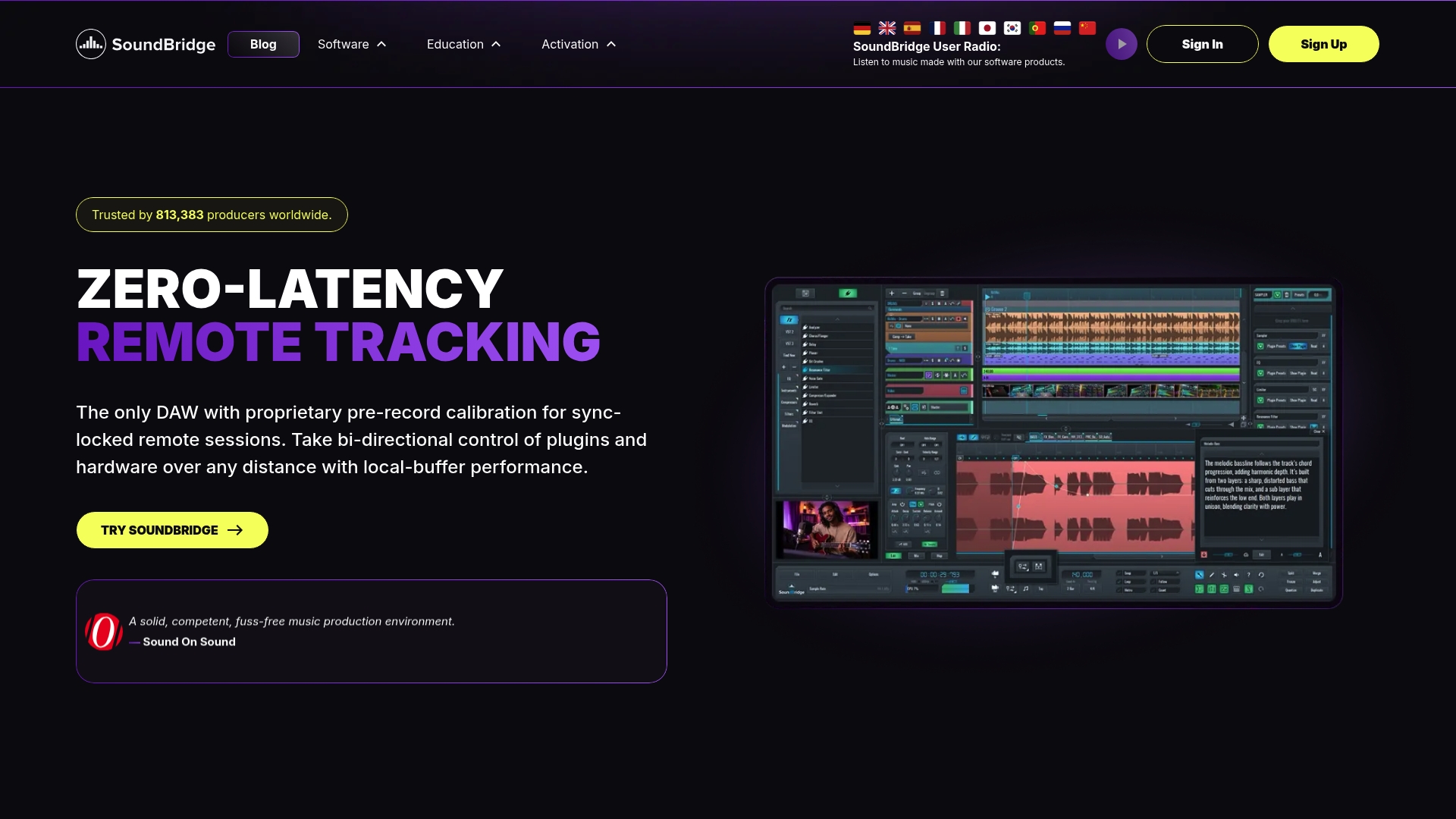
For export and packaging, SoundBridge’s support for sample rates up to 192kHz means you’re not compromising fidelity to keep files compatible across a team’s mixed DAW setups. The built-in talkback and integrated video handle the review conversation that used to happen over scattered voice memos, and customizable workflows let you mirror the folder and versioning structure above without having to fight the software to do it.
If you’re still deciding whether a browser-based tool or a full desktop DAW fits your remote setup, the cloud-based DAW collaboration guide walks through the trade-offs, and the virtual collaboration page breaks down the sync and talkback features in detail. Ready to see it inside an actual session? Start a project on SoundBridge and run your next handoff through it before your current deadline hits.
Sources
- Async Collaboration Handoff Checklist for Producers | Plugg Supply
- DAW collaboration Workflow Plan | The Ghost Production
- File management for music production | Sweetwater
- Cloud Collaboration & Version Drift: Who Has the Truth | Music Scientists
Recommended
MASTER MUSIC PRODUCTION
Expert-led courses designed to take you from fundamentals to finished tracks.

HOUSEFrom bouncy bass and solid kicks, this course teaches you the most modern House music production techniques needed to succeed and stand out.

TRAPQuit sounding like generic Trap and produce something World with hints of the Far East. Create ethnic soundscapes to put your Trap ahead of the curve.

AMBIENTProduce relaxing, sophisticated psy-influenced ambient. Psychedelic and relaxing to listen to, create meditative soundscapes to put your listeners in Zen.