

Film Scorers: Import Your Video Into a DAW at 48 kHz for Precise Control
Last Edited: Oct 22, 2026
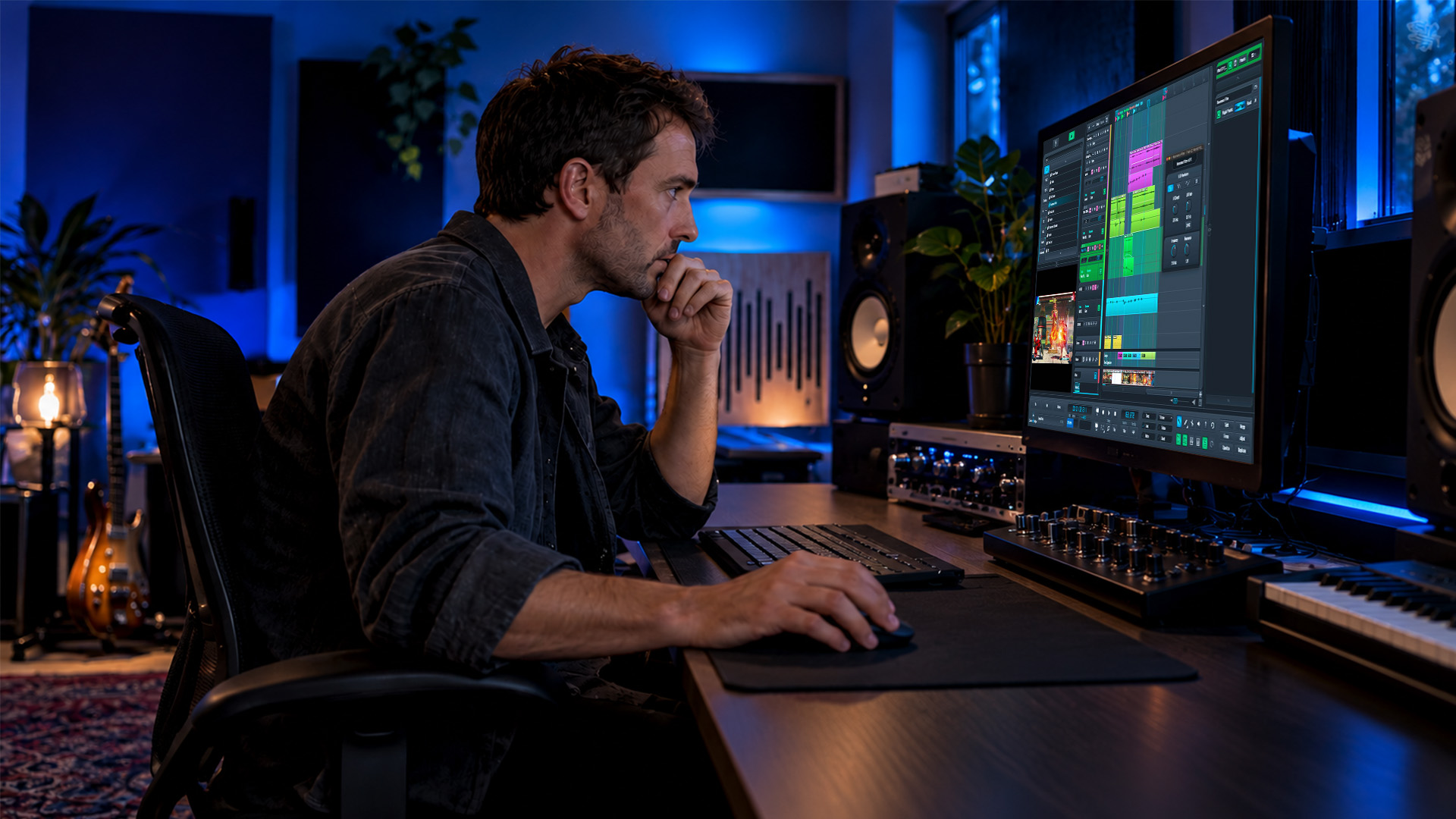
Import your video file, copy it into the project folder, and match the project frame rate to the footage before you touch a fader. Set your audio sample rate and bit depth correctly (48 kHz and 24-bit are the most used settings for film work). Get these three settings right from the first minute, and every cue you write will land exactly where the picture needs it.
TL;DR:
- Use ProRes or DNxHD for precise scrubbing.
- Mark cuts, action hits, and dialogue endpoints, then check critical points frame by frame and at full speed; nudge audio a few milliseconds early if it lags.
- If playback stutters, inspect CPU, GPU, and disk read speed; convert the video to ProRes if needed, then test a short export with picture attached.
- Keep the video in your project folder, preserve its filename and source timecode, and save a separate marker map and session settings for the picture editor.
Project Settings That Prevent Sync Problems Before They Start
Every scoring session lives or dies on three numbers: frame rate, sample rate, and bit depth. Get them wrong at the start, and you will chase drift for the rest of the project instead of writing music.
Set your project's timecode frame rate to match the picture editor's specified frame rate. This helps keep markers, cue positions, and timecode references consistent across applications. A mismatch can cause positioning errors or misinterpretation of timecodes.
48 kHz is the professional standard sample rate for film and video work, paired with 24-bit depth, and matching it keeps your audio compatible with the editor’s system from the first export.
Before you import anything, run through this short checklist:
- Confirm the video’s native frame rate and set your project to match it exactly.
- Set your sample rate to 48 kHz and your bit depth to 24-bit.
- Copy the video file into your project folder rather than linking to it from an external drive.
- Check for a production guide track or embedded timecode, and import it alongside the picture.
Keep the original filename intact and jot down the source timecode. That small habit saves real time when a picture editor needs to reconform your cues months later.
Step-By-Step: Import the Video, Verify Playback, and Set Markers
Once your settings are locked, the import process itself is quick. Follow these steps in order to catch most problems before they cost you a session.
- Copy the video file into your project folder, then use your DAW’s import video command to bring it onto the timeline.
- Confirm the DAW detected the correct frame rate automatically, or set it manually if it did not.
- Verify video playback is smooth and check for any embedded audio track, confirming its sample rate and alignment against your session.
- Drop markers at every visual hit, meaning cuts, action beats, and object strikes, then save the marker map so collaborators can reference the same points.
A few habits make this process more reliable:
- Scrub through the entire video once before placing a single marker, so you know where every major beat falls.
- Use frame-by-frame navigation to confirm precise hits rather than eyeballing them during real-time playback.
- Label markers descriptively (“door slam,” “cut to wide”) instead of generic numbers, since you will thank yourself during revisions.
Pro Tip: Save your marker map as its own file before you start composing, so a picture edit change never forces you to rebuild your sync points from scratch.
Which Codecs and H.264 Settings Keep Playback Frame-Accurate
Not every video file behaves the same way once it lands in your timeline, and the codec behind it matters more than most composers expect.
Mezzanine codecs built for editing, specifically Apple ProRes and Avid DNxHD, give you frame-accurate playback and hold sync reliably during scrubbing and frame-by-frame review. These formats decode every frame independently, so your DAW never has to guess where a frame boundary falls.
H.264 files are common because they’re small, but the format’s compression makes frame-by-frame navigation unreliable in many DAWs, since intermediate frames depend on neighboring ones to reconstruct the image. If you don't have a ProRes or DNxHD file, re-encode your H.264 source with a 1-frame keyframe interval, B-frames limited to 3, and reference frames limited to 2 to reduce decoding workload and make frame-by-frame scrubbing more dependable.
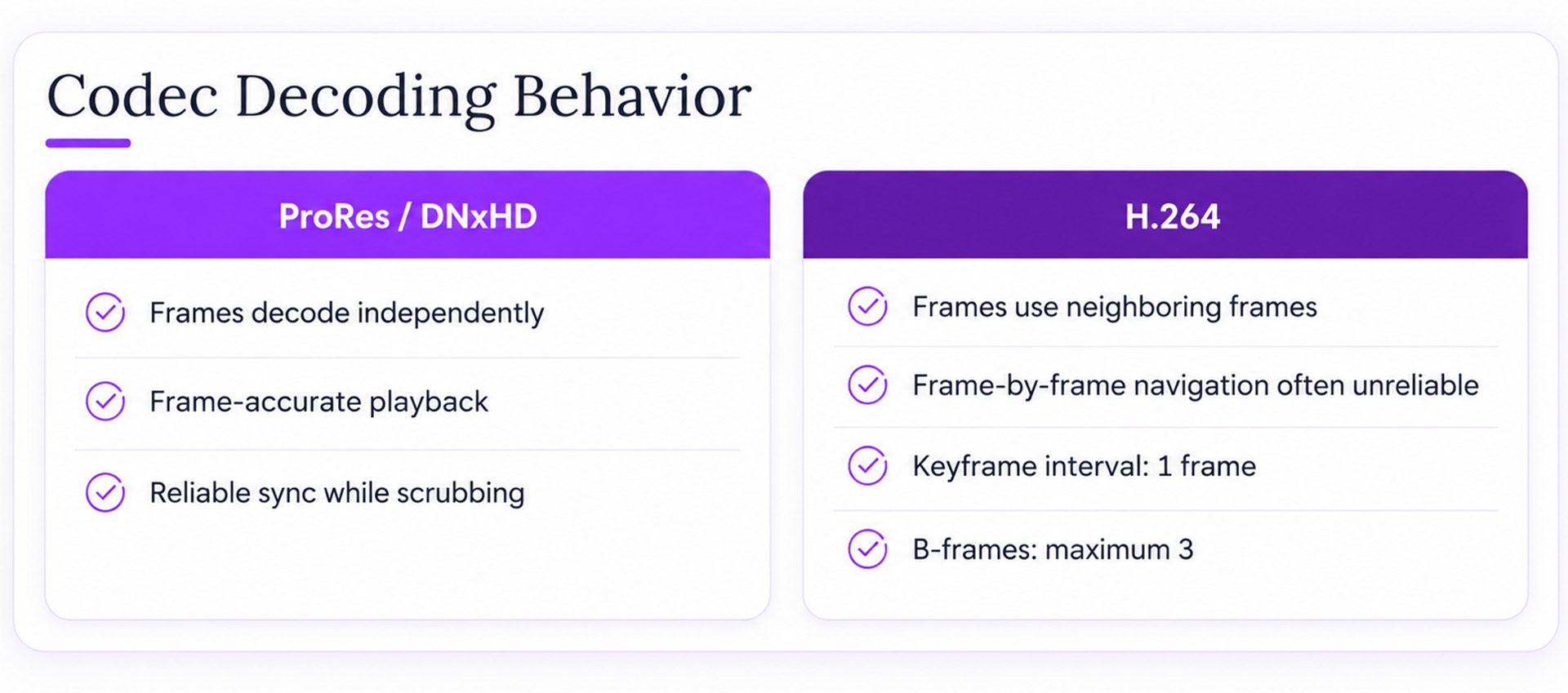
A 1-frame keyframe interval paired with conservative B-frame and reference-frame counts measurably improves H.264 decoding performance for frame-accurate work inside a DAW.
When you can, ask the picture editor for a timecode-burned ProRes or DNx mezzanine file for your final deliverable pass. It removes an entire category of sync headaches.
Markers, Subframe Nudging, and Getting Sync to Feel Right
Markers are your most important creative tool once the picture is loaded. Drop them at every cut, action hit, and dialogue endpoint, and treat the resulting marker map as part of your deliverable, not just a personal reference.
Exact frame-edge alignment is not always the goal. A single film frame at 24 fps lasts about 42 milliseconds, and perceptual sync research suggests viewers often accept small offsets within that window as natural rather than as errors.
- Place markers on visual hits first, then let transient alignment guide the actual audio placement.
- Nudge a hit by a few milliseconds rather than snapping it to the nearest frame edge when the raw alignment sounds stiff.
- Check every critical sync point both frame-by-frame and in real-time playback, since problems audible at speed sometimes disappear when isolated frame by frame, and vice versa.
Pro Tip: When a hit feels almost right but not quite, nudge the audio a few milliseconds early rather than late. Audiences forgive anticipation far more readily than lag.
Fixing Playback Stutters and Verifying Your Final Export
Stuttering playback during scoring almost always traces back to disk speed, CPU load, or an unoptimized codec, not a problem with your creative decisions.
- First, check CPU and GPU load along with disk read speed, since video playback competes with your audio engine for the same resources.
- If stuttering persists, render or consolidate the video to an intermediate codec like ProRes before continuing the session.
- If your exported audio drifts from picture, recheck your project frame rate settings, then export a short test clip with picture attached to confirm the fix before committing to a full bounce.
- On long or heavy sessions, render your stems and reconform them to picture for the final mix rather than running everything live.
- Save your session metadata, meaning frame rate, sample rate, and timecode, in a file you can hand directly to the picture editor.
That last step matters more than it sounds. A one-line document with your three core settings prevents an entire category of back-and-forth when the editor reimports your cues.
How SoundBridge Supports a Video-Driven Scoring Session
We built native video import directly into the SoundBridge timeline, so there’s no plugin or workaround standing between your footage and your score. Audio processing runs at high sample rates, providing film composers headroom beyond the 48 kHz delivery standard.
- Native video support keeps picture, markers, and audio in one synchronized timeline.
- Integrated talkback and zero-latency remote tracking let a director or editor sit in on a scoring session from anywhere.
- Bi-directional plugin and hardware control means your outboard gear responds in real time while you work against picture.
If you want to see how these features fit into a scoring workflow end to end, our composing film music resource walks through a full session.
Adjusting the Video Window for Your Scoring Workflow
Your video window should work with your session, not compete with it for screen space. Most DAWs let you resize the window freely and either float it as a separate panel or dock it alongside your timeline and mixer.
For scoring work specifically, keeping the video window large enough to read facial expressions and action beats clearly matters more than squeezing in extra track height. A cramped video window makes it easy to miss the small physical cues, like a glance or a hand movement, that often deserve a musical accent.
If you work on a single monitor, consider docking the video window above your timeline so markers and picture stay in your direct line of sight while you play in parts. On a dual-monitor setup, floating the video window on a second screen at a larger size frees your primary screen for the full arrangement view, which is especially useful once a session fills up with multiple stems and automation lanes.
Whichever layout you choose, keep it consistent across sessions. Hunting for a resized or relocated video window every time you open a project wastes minutes you could spend writing music.
Using Play, Pause, and Scrub Controls While You Score
Your transport controls do more work in a video-driven session than in a standard music production, since you’re constantly checking picture against audio rather than just looping a section.
Playback and pause work the way you’d expect, but scrubbing is where precision matters most. Frame-by-frame scrubbing lets you step through picture one frame at a time to pinpoint exactly where a cut or hit occurs, which is far more reliable than trying to catch it by ear during real-time playback.
Build a habit of looping a short section around a hit point while scrubbing back and forth across it. This lets you compare a potential sync point against the surrounding frames before committing a marker, and it’s faster than repeatedly stopping and restarting playback from further back in the timeline.
Reserve full-speed playback for checking how a cue feels against the edit as a whole, after you’ve already nailed the technical hit points using frame-by-frame scrubbing. Switching between these two modes, precise frame stepping for placement and real-time playback for feel, catches both technical and perceptual sync issues before they reach a final mix.
Keeping Talkback and Video Comments Useful During Collaboration
Scoring is rarely a solo process once a director, editor, or supervisor gets involved, and talkback features keep that conversation efficient.
Talkback lets a remote collaborator hear your session and speak into it without you passing a phone back and forth or exporting a new file for every round of notes. Paired with zero-latency remote tracking, it means a director can sit in on a live scoring pass and react to a cue the moment it plays against picture, not two days later over e-mail.
Video comment features let collaborators mark specific points in the picture with notes, which works especially well alongside your own marker map. When a director flags “accent this moment” directly on the timeline, that note sits right next to your existing hit markers instead of living in a separate document you have to cross-reference.
Keep these sessions organized by agreeing on naming conventions for markers and comments before a collaborative pass begins. A shared vocabulary for hit points saves real time when multiple people add notes to the same timeline.
When to Accept H.264 and When to Demand a Mezzanine File
Early in a project, a compressed H.264 preview is fine for sketching themes and finding a scene's emotional shape. Once you’re placing precise hits, switch to ProRes or DNxHD and don’t look back. The difference in frame-by-frame reliability is not subtle.
If you only remember three things from a rapid session setup, make them these:
- Match your project frame rate to the video exactly.
- Set your sample rate to 48 kHz and bit depth to 24-bit.
- Drop markers at every hit before you write a single note.
Everything else in a scoring workflow builds on those three decisions.
— Wake
Score Against Picture Without Fighting Your Setup
We built SoundBridge so the three settings that matter most, matching frame rate, 48 kHz audio, and marker-based sync, work the moment you import a video rather than requiring a workaround. Native video support sits directly in the timeline alongside high-fidelity audio processing up to 192 kHz, so you can place a hit, hear it instantly, and move on to the next cue.
- Import your footage and start scoring with native video support built into the timeline.
- Bring in a remote director or editor using integrated talkback and zero-latency tracking.
- Explore composing techniques further on our composing film music page.
Check out our licensing options to see how your next scoring session feels with video sync handled from the first import.
FAQ
What frame rate should I set for a film scoring project?
Set your project frame rate to match the source video exactly, whether that’s 23.976, 24, 25, or 30 fps. A mismatch causes timing drift that gets worse the longer your session runs.
Why does my video stutter during playback in my DAW?
Stuttering usually comes from disk speed, CPU load, or a demanding codec, not a DAW setting. Re-encoding the file to an editing codec like ProRes, or adjusting H.264 keyframe and B-frame settings, typically resolves it.
Should I use H.264 or ProRes for scoring sessions?
ProRes and DNxHD offer more reliable frame-by-frame playback for precise sync work, while H.264 works fine for early sketching when file size matters more than frame accuracy. Switch to a mezzanine codec once you’re placing final hits.
How do I verify my exported audio stays in sync with picture?
Export a short test clip with the video attached and check it against your original markers before committing to a full bounce. If drift appears, recheck that your project’s frame rate and sample rate match the source file.
Does SoundBridge support importing video directly into a session?
Yes, SoundBridge includes native video import alongside high-fidelity audio processing, so picture and score stay in one timeline. Collaboration features like talkback and zero-latency remote tracking are included for sessions involving a director or editor.
Sources
- How to Set up a Film Scoring Session in Your DAW – Flypaper
- Sound editing in sync tutorial – Pro Sound Effects blog
- Optimizing your H.264 codec configuration – Bitmovin developer docs
- Audio sample rate guide – DiscMakers blog
Recommended
MASTER MUSIC PRODUCTION
Expert-led courses designed to take you from fundamentals to finished tracks.
HOUSEFrom bouncy bass and solid kicks, this course teaches you the most modern House music production techniques needed to succeed and stand out.
TRAPQuit sounding like generic Trap and produce something World with hints of the Far East. Create ethnic soundscapes to put your Trap ahead of the curve.
AMBIENTProduce relaxing, sophisticated psy-influenced ambient. Psychedelic and relaxing to listen to, create meditative soundscapes to put your listeners in Zen.