

How to Build a Joint Session Arrangement That Stays in Sync
Last Edited: Aug 24, 2026
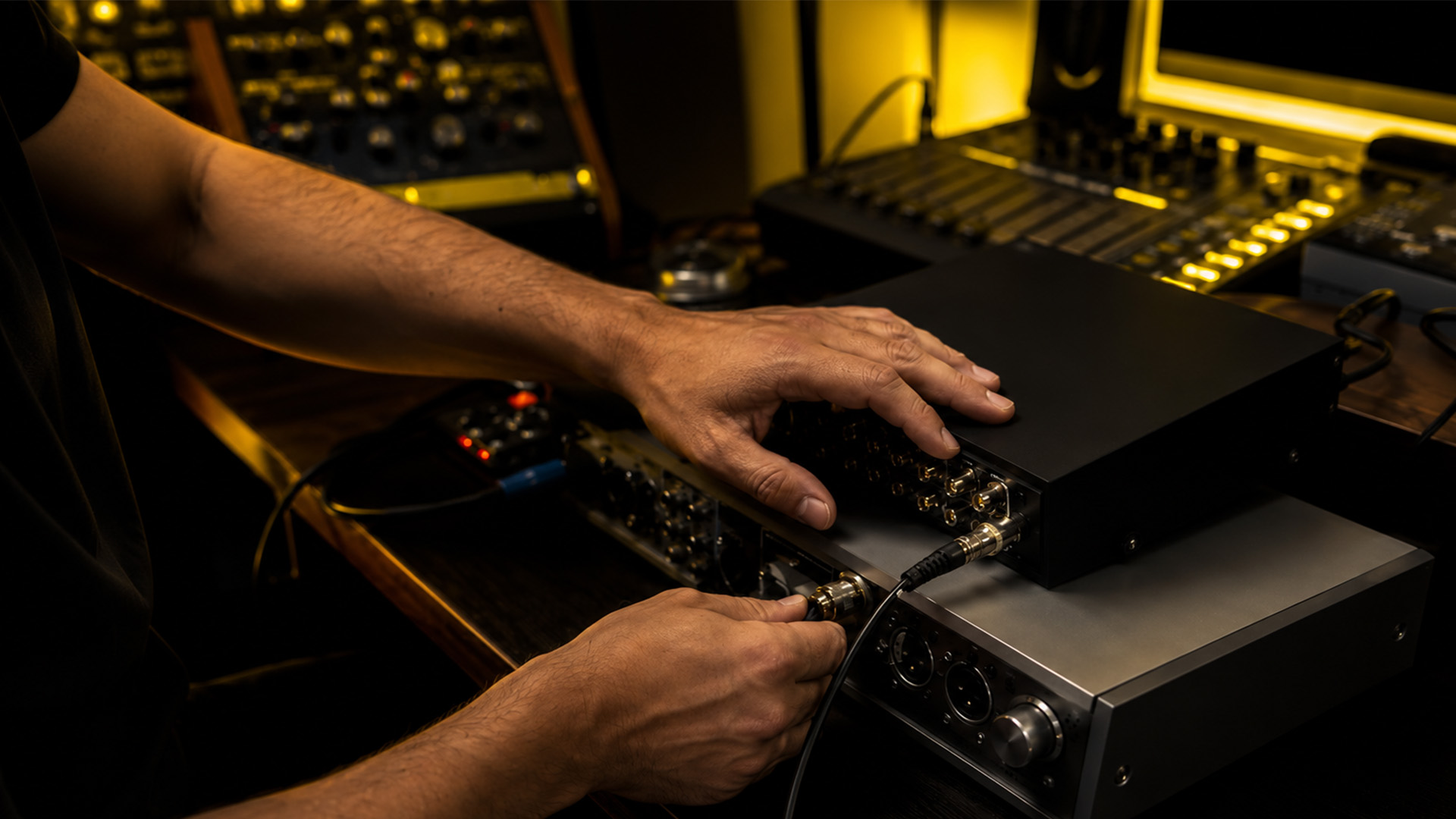
A joint session arrangement is a DAW-based setup that combines synchronized session files, clock and sample-rate alignment, dedicated talkback, and local-stem backups, enabling remote musicians to track and produce together in real time. Follow the checklist below, and you’ll run a session with studio-accurate sync, 10-30 ms of practical monitoring latency, and redundant local stems ready for the final mix.
- Session file with matching sample rate and a bar-1 sync marker
- Wired connection with at least 10 Mbps upload
- Separate talkback channel and local recording on every machine
Pro Tip: Set your monitoring buffer as low as your CPU allows before the session starts. Adjusting mid-session is how you end up with a dropped take right when the vocal finally clicks.
Key Takeaways
A joint session arrangement succeeds when synchronized clocks, wired networking, and local-stem backups are confirmed before a single note is recorded.
| Point | Details |
|---|---|
| Match the sample rate first | Confirm every participant’s session file uses the same sample rate before connecting. |
| Prioritize wired Ethernet | Wired connections with QoS enabled can reduce monitoring latency by 10-30 ms compared to Wi-Fi. |
| Record locally, always | Treat the real-time stream as a guide track; the local recording is the actual master. |
| Assign roles before starting | One transport controller and a clear mute policy prevent dueling starts and stops. |
| SoundBridge handles the routing | Its zero-latency tracking and single-transport control handle most of the setup steps in this checklist natively. |
When Donatively handleNeed A Joint Session Arrangement InAsync?
Real-time joint sessions earn their setup cost when timing and feel drive the work: live tracking a rhythm section, directing a vocalist in real time, or letting a client hear playback as it happens. If the part can be recorded alone and dropped in later, asynchronous stem workflows usually get there faster with less hassle.
- Real-time fits: live drums/bass, co-producing, client direction sessions
- Async fits: overdubs, detailed edits, anything past 40-50 ms round-trip latency
- Hybrid works well: jam in real time, then track final takes asynchronously
What Hardware And Software Does Every Participant Need?
Every person in the session needs three things confirmed, not assumed: solid hardware, a clean network path, and software that’s already configured before anyone hits record.
Hardware. An audio interface with low-latency drivers, closed-back headphones to prevent bleed into open mics, and a computer that isn’t also rendering video in the background. A dedicated USB audio router helps when more than two people are tracking through a single machine.
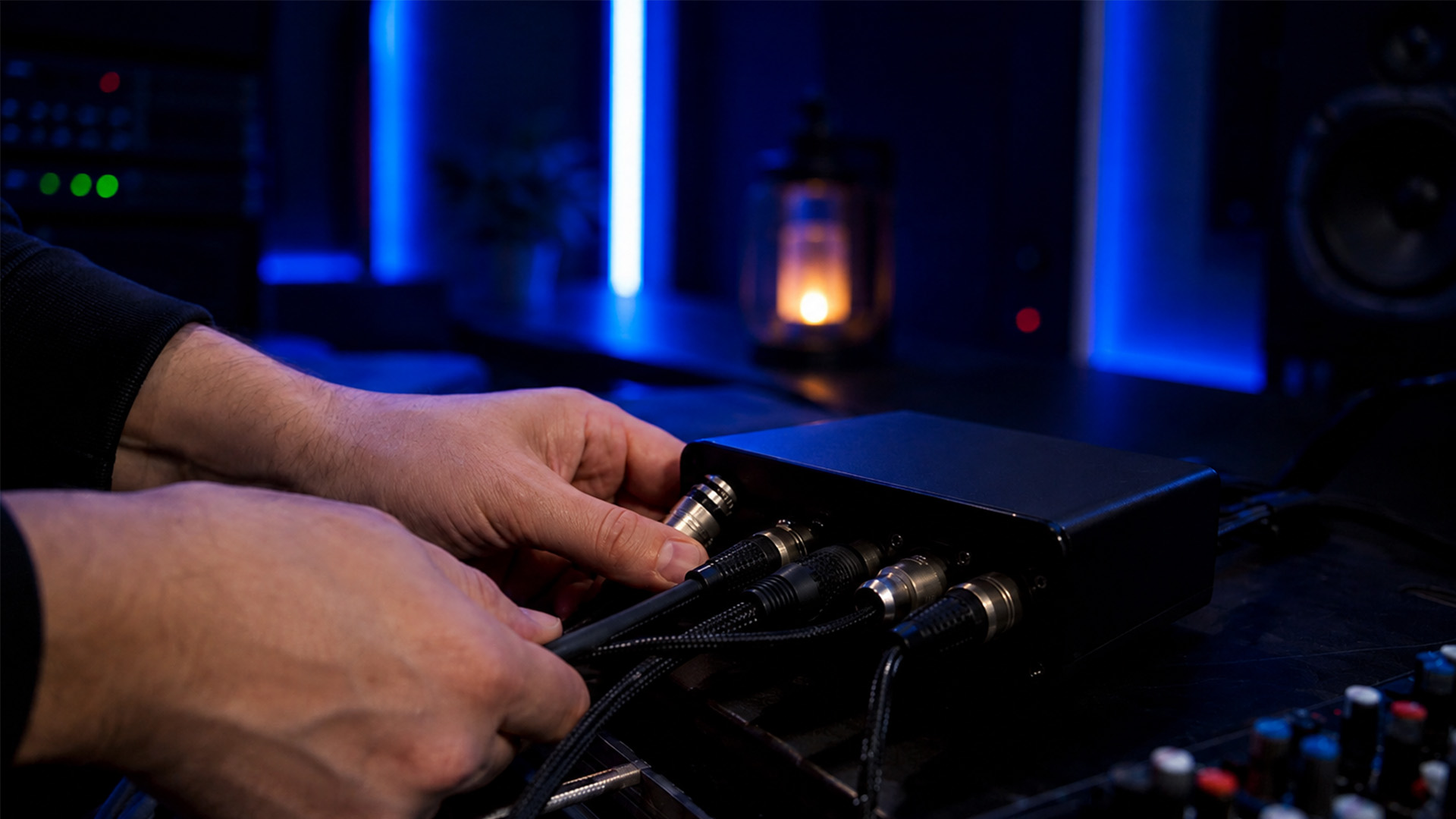
Network. Wired Ethernet is non-negotiable for anyone tracking live. Enable Quality of Service (QoS) on the router to prioritize audio traffic, confirm a minimum of 10 Mbps in both directions, and keep a 4G or 5G hotspot ready as backup if the primary connection drops mid-take.
Software. A pre-built DAW template with routing already mapped, a low-latency streaming or transport-link plugin, and a separate communication app for talkback so voice chatter never competes with the audio stream.
- Interface + headphones + dedicated machine (not shared with video calls)
- Wired Ethernet, QoS enabled, 10 Mbps minimum each direction
- DAW template, transport-link plugin, separate talkback app
Pro Tip: Do a five-minute technical audit the day before, not the hour before. Loading the session template and confirming every plugin opens cleanly catches 90% of the problems that would otherwise eat your first 20 minutes live.
How Do You Set Up A Session Step-by-Step?
Run through these steps in order every time. Step-by-Step is how sessions start 15 minutes late.
- Load the template. Open your saved DAW project template, confirm the sample rate and bit depth match what every participant agreed on beforehand, and drop a silent sync marker tone at bar 1, beat 1 so everyone’s timeline lines up on import.
- Confirm plugins load. Open every instrument and effect in the chain before anyone connects. A missing plugin mid-session stalls the whole group, not just one person.
- Connect and prioritize. Plug in via Ethernet, confirm QoS is active on the router, and close any app that might compete for bandwidth (cloud backups, auto-updates, video streaming).
- Start the streams. Launch your low-latency monitor path first, then open a separate talkback channel so cues and chatter never touch the recorded signal.
- Arm local recording. Every contributor records locally at full quality, not just through the stream. The live feed is for direction and feel; the local file is the actual master.
- Confirm the file path. Check that each participant’s local recording destination and naming convention are set before the first take, not after.
- Rehearse the cues. Run a 30-second count-in and stop cue so everyone knows what “go” and “cut” sound like over talkback.
- Smoke test. Play a click or clap, confirm round-trip latency feels right, verify the recorded file lands where it should, and only then start the real session.
Pro Tip: Have the session leader call out bar numbers during the countdown, not just “3, 2, 1.” It gives every player an anchor if latency causes even a slight lag in the talkback feed.
What Sample Rate, Buffer Size, And Bandwidth Should You Use?
Most joint sessions run cleanly at 44.1-48 kHz, with 96-192 kHz reserved for high-end film scoring where SoundBridge’s extended sample-rate support pays off. For buffer size, 64-128 samples keeps monitoring latency in the 1.5-3 ms range at the audio interface level; lower it back down once you freeze the offending tracks.
Aim for round-trip monitoring latency under 20 ms, and expect wired Ethernet with QoS enabled to shave 10-30 ms off a comparable Wi-Fi connection.
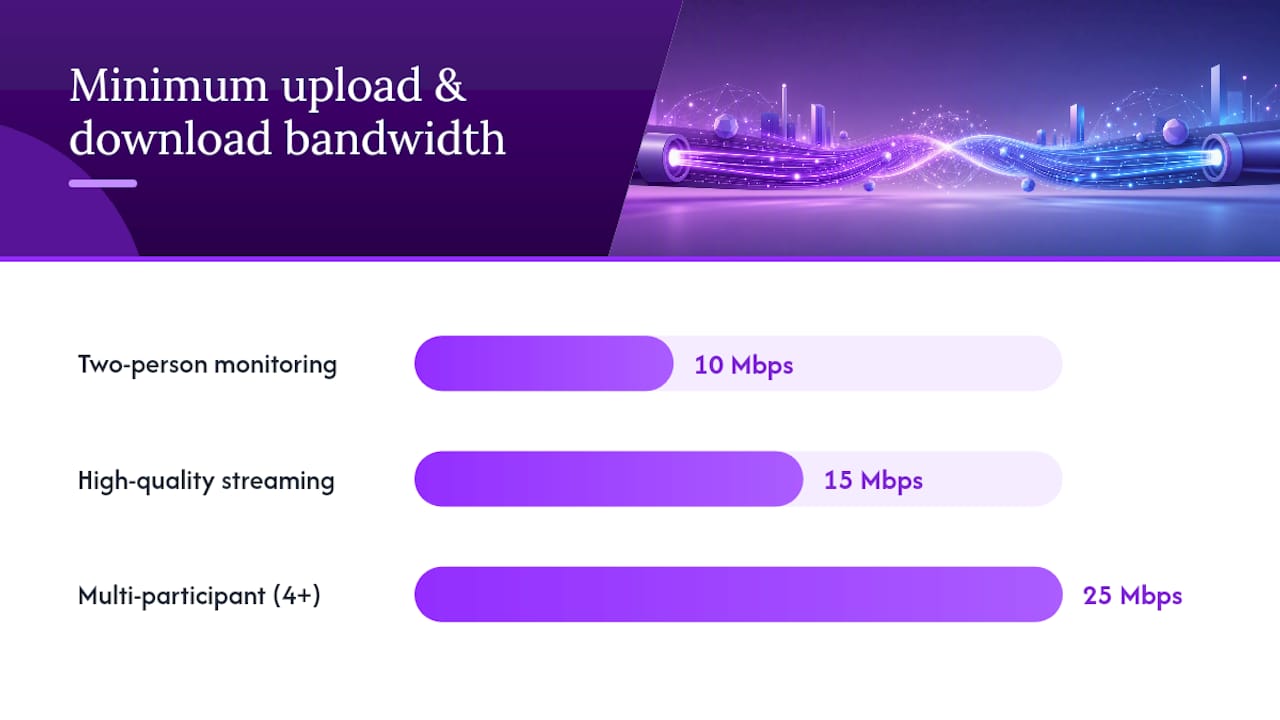
| Session Type | Minimum Upload | Minimum Download |
|---|---|---|
| Two-person monitoring | 10 Mbps | 10 Mbps |
| High-quality streaming (video + audio) | 15 Mbps | 15 Mbps |
| Multi-participant (4+) session | 25 Mbps | 25 Mbps |
Pro Tip: Disable cloud backup syncing and OS updates before you start. A Dropbox sync kicking off mid-take is a silent latency killer that never shows up in your DAW’s meters.
Who Should Handle Each Role During The Session?
A joint session runs more smoothly when roles are assigned before anyone plugs in, not negotiated mid-take. Confusion over who controls transport is one of the fastest ways to lose a good take to a dueling stop-and-start.
- The session host owns the master clock and transport controls
- The session leader gives musical cues, and the calls take
- Local recorder(s) confirm their own recording arms and levels
- File manager handles uploads, naming, and backup
- Note-taker logs take numbers and comments for the mix later
Set one rule early: only the host touches transport. Everyone else mutes their mic when not actively performing, and edits to the shared session file go through the file manager rather than ad hoc. For file naming, something like Vocal_LeadHook_128BPM_Amin_v001.wav Keeps every stem sortable weeks later.
How Do You Route Monitoring And Talkback Cleanly?
Two separate paths solve most monitoring headaches: a low-latency monitor mix for performers to play against, and a higher-fidelity stream or local recording path that becomes the actual master. Mixing these into one signal is where most latency complaints originate.
- Give each performer their own headphone mix, not a shared master bus
- Keep headphone levels moderate. Loud monitoring increases perceived latency and mic bleed
- Route talkback through a separate app like Zoom or Discord, distinct from the audio stream
- Agree on clear verbal cues (“rolling,” “cut,” “one more”) so nobody talks over a take
Musical anchor techniques help too: a soft click or ambient bed under the mix gives performers something to lock to even if network latency spikes for a moment.
What Do You Do When a Session Starts to Break Down?
Most joint session failures fall into three categories, and triage order matters: check the network first, then the clock and sample rate, then CPU load.
- Dropouts → confirm the Ethernet cable is seated, verify QoS is still active, and check that no other device is hogging bandwidth
- Sync drift → recheck that every participant’s sample rate matches the session file exactly
- CPU spikes and crackle → raise the buffer size or freeze CPU-heavy tracks temporarily
- Persistent problems → abort the real-time session and switch to an asynchronous workflow, having everyone export their local stems from the last clean take
Pro Tip: Keep recording locally even while troubleshooting the stream. The stream can fail and restart; a local take that was never armed is gone for good.
How Should You Store, Name, And Secure Session Files?
Every participant should record locally at full quality and upload finished stems to a shared cloud folder immediately after the session, not days later. A clear folder structure prevents the version confusion that derails so many collaborative mixes.
- Use a structure like
/ProjectName/stems_v001,/project_files,/reference, and/deliverables - Every stem should start at bar 1, beat 1, with BPM and key embedded in the filename
- Share cloud links with limited access rather than public write permissions
- Prefer authenticated storage over open links for anything containing unreleased material
How Does SoundBridge Simplify A Joint Session Setup?
Most of the friction in a joint session comes from stitching together separate tools for sync, talkback, and file transfer. SoundBridge builds those pieces into one workflow instead.
- Zero-latency remote tracking removes the guesswork around buffer and clock settings covered above
- Integrated talkback and video mean no separate comms app running alongside your DAW
- Support up to 192kHz sample rates covers everything from a home session to film scoring
- Project templates cut the pre-session setup time that eats into rehearsal
Single-transport control and built-in collaboration routing solve the “who controls playback” problem directly at the platform level, which is exactly the kind of role confusion that derails otherwise well-planned sessions. If you’re setting up your first remote session, SoundBridge’s virtual collaboration tools are worth testing against a real template before your next scheduled call.
A Lesson From Sessions That Almost Fell Apart
Transport discipline saves more sessions than better bandwidth does. I’ve watched a promising take collapse because two people hit stop at once and nobody knew whose transport won. My rule now: export a one-bar marker tone at negative 60 dB on its own track before anyone plays a note. It’s cheap insurance against drift nobody notices until the mix.
Ready To Run Your Next Collaborative Session?
Every checklist item above (clock sync, low-latency monitoring, talkback routing, local-stem backup) is something you’d otherwise juggle across three or four separate apps. SoundBridge puts zero-latency remote tracking, integrated talkback, and high-fidelity recording up to 192kHz into one DAW, so the setup steps in this guide take minutes instead of an afternoon of trial and error.
If you’re a producer or engineer who runs sessions with collaborators regularly, the biggest win isn’t any single feature. It’s not rebuilding your routing from scratch every time someone new joins the call. Start with SoundBridge’s collaboration workflow and load one of the ready-made templates before your next scheduled session. If you’re still deciding whether a full DAW switch makes sense, the SoundBridge guide for musicians walks through what changes day to day.
Frequently Asked Questions
What is a joint session in music production? It’s a DAW-based real-time collaboration setup where multiple musicians connect over a network to record or produce together, using synchronized clocks, a shared monitoring path, and separate local recordings for the final mix.
What internet speed do I need for a joint session arrangement? A minimum of 10 Mbps for upload and download is sufficient for a two-person session; multi-participant sessions with video and high-quality streaming benefit from 25 Mbps or more, per Feedtracks’ network guidance.
Should I record locally even during a real-time session? Yes. Local recording at full quality is your safety net. The live stream is for feel and direction, not the final master.
What causes sync drift between collaborators? Mismatched sample rates or clock sources are the usual culprits. Confirm every participant’s DAW session matches before recording starts.
When should I switch from a real-time session to asynchronous work? Once round-trip latency creeps past 40-50 ms or dropouts become frequent, hybrid or fully asynchronous stem workflows usually get better results with less frustration.
Sources
- Real-Time Audio Collaboration: Tools & Best Practices | Feedtracks Blog
- 10 Essential Remote Music Production Workflow Tips 🎧 (2026) - Make A Song
- Musicproductionwiki
- How to Record Music Remotely: rLegacy Workflow Guide — rLegacy Media.Inc
Recommended
MASTER MUSIC PRODUCTION
Expert-led courses designed to take you from fundamentals to finished tracks.

HOUSEFrom bouncy bass and solid kicks, this course teaches you the most modern House music production techniques needed to succeed and stand out.

TRAPQuit sounding like generic Trap and produce something World with hints of the Far East. Create ethnic soundscapes to put your Trap ahead of the curve.

AMBIENTProduce relaxing, sophisticated psy-influenced ambient. Psychedelic and relaxing to listen to, create meditative soundscapes to put your listeners in Zen.