

Studio Producers: Stop MIDI Feedback Loops
Last Edited: Oct 30, 2026
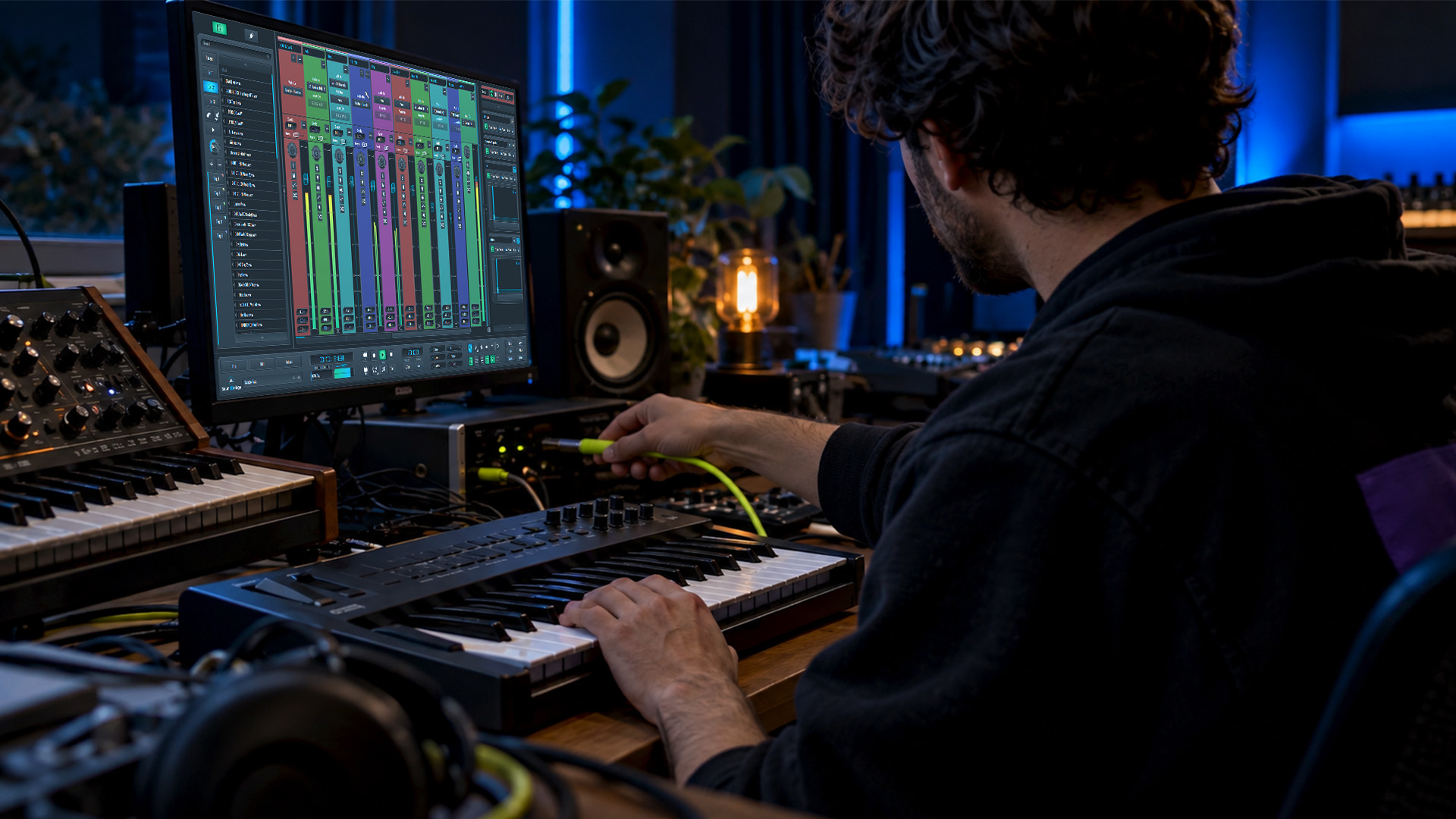
A MIDI feedback loop occurs when a device sends a message back to itself, creating a closed circuit that can trigger runaway notes, stuck keys, or garbled data. The fastest fix: mute the loopback connection or flip Local Control OFF on your synth right now. Once the noise stops, we will walk through why it happened and how to keep it from coming back.
TL;DR:
-
Using Local Control OFF on your synth or muting loopback routes can immediately stop MIDI feedback loops and prevent runaway notes or garbled data.
-
The most common causes are internal synth wiring, DAW settings like MIDI Thru or soft-thru, and physical or virtual routing that creates a feedback path.
-
Systematically disconnect devices, disable soft-thru, and use monitoring tools to identify which port or app causes the loop, then reconfigure your setup accordingly.
-
On Windows, MIDI Services automatically mutes loopbacks when it detects feedback, providing an additional safeguard against continuous loops.
-
Keep routing simple, labeled, and consistent, save templates, and disable soft-thru during recording to minimize accidental feedback and save studio time.
What Causes MIDI Feedback Loops in Your Studio
Most loops trace back to one of three culprits. Local Control is the usual suspect: when your sequencer echoes incoming notes back to the synth, and the synth’s own keyboard is still internally wired to its sound engine, you get the same note twice. MIDI disconnects the keyboard from the internal engine, so external data controls the sound without double-triggering.
The second cause lives inside your DAW. Settings like MIDI Thru, soft-thru, or “echo MIDI input” are built to help you monitor incoming notes, but they also re-send every message right back out, often straight into the same device that sent it.
The third is routing itself:
-
Virtual loopback ports connected in both directions, feeding a signal back into its own source
-
Physical two-way USB or DIN cabling where both ends talk and listen on the same channel
-
Studio setups with a controller, a synth, and a DAW all echoing through one shared bus
Quick Emergency Checklist: Immediate Steps to Stop a Loop Now
When notes start stacking, or a synth screams on its own, work through these steps in order:
-
Mute the virtual loopback or the DAW track connected to the misbehaving device.
-
Turn Local Control OFF on the synth or controller, or send CC122 = 0 if your gear supports it.
-
Disable your DAW’s MIDI Thru or Echo MIDI Input setting, or mute the offending MIDI track.
-
Pull the USB or MIDI cable as a last-resort physical break.
-
On Windows, check for a loopback-mute notification before you unmute anything. Windows MIDI Services automatically mutes loopback endpoints as soon as it detects feedback, so that notification often means the problem is already contained.
Pro Tip: Keep one hand near the volume fader while you troubleshoot. A muted speaker buys you time to think without waking the whole building.
Step-By-Step Diagnosis: Isolate the Device or App Causing the Loop
Once the noise stops, find the cause so it doesn’t happen again next session. Start clean and rebuild your connections one piece at a time.
Boot the synth standalone first, with no cables attached, and confirm it behaves normally. Then connect the audio interface or USB cable alone, without launching your DAW. Finally, open the DAW and add one MIDI route at a time, listening for the loop to reappear after each addition.
Use a monitoring tool to see exactly what is moving through each port:
-
MIDI-OX on Windows or MIDI Monitor on macOS shows the direction and rate of every message passing through a port.
-
The Windows MIDI Console lets you enumerate endpoints and watch traffic without opening a third-party app.
-
Close background apps one at a time while unmuting a loopback, and note which closure stops the re-muting.
-
Check any mapping or routing software for a route that feeds a loopback endpoint back into itself.
Stuck notes and runaway control-change messages are classic loop signatures. If a note hangs after you release the key, or a knob value climbs on its own, you are almost certainly looking at an echo. Write down the exact port names involved the moment you spot the pattern. That label will save you from repeating the same diagnostic the next time your setup changes.
Prevention: Wiring, Routing, and Habits That Keep Loops Away
A clean signal path beats a clever one. Route sequencing data in a single direction: one MIDI out from your controller into the synth’s input, not looped through multiple hubs. If your interface offers dedicated ports for each device, use them instead of daisy-chaining through a shared bus.
A few habits make the difference between a quiet session and a 2 AM troubleshooting hunt:
-
Never set an app’s input and output to the same loopback endpoint.
-
Save named routing templates for each project so you are not rebuilding connections from memory.
-
Label your physical ports and cables, especially in a studio with more than one controller.
-
Disable soft-thru while tracking and use track mute instead of changing routing mid-session.
-
For network MIDI setups, manage sessions and discovery carefully. Network MIDI 2.0’s session model reduces accidental echoes on a shared network, but it still requires deliberate session management to avoid unintended two-way routing.
A routing workflow guide from Vector DSP’s parallel effects routing walkthrough covers similar discipline for audio signal paths. The same per-lane thinking applies well to MIDI: know exactly where each connection starts and ends before you hit record.
Windows Tools for Loopback Setup and Feedback Protection
If you produce on Windows, you already have a built-in safety net. Windows MIDI Services automatically mutes a loopback as soon as it detects a feedback condition, which is normal protective behavior, not a bug.
Windows mutes loopbacks by default when it detects feedback; this default setting is called Feedback Protection. Microsoft’s Windows MIDI Services documentation confirms the default protection mode is “Mute,” which stops the loop without deleting your endpoint configuration.
To manage this directly:
-
Open MIDI Loopback Setup or the MIDI console to see every active endpoint and loopback on your system.
-
Use console commands to mute, unmute, or recreate a loopback once you have confirmed the source of the loop.
-
Choose “Do nothing” only for specialized apps that intentionally echo messages as part of their design, and understand that doing so removes the automatic safety net.
-
If the loop keeps recurring, collect a trace through the console and read the mute log to see which endpoint triggered the protection first.
The MIDI console tool supports commands like enumerate, endpoint, and loopback, giving you a direct line to the exact moment feedback started.
Keep Your Routing Clean With SoundBridge
You should control MIDI and audio routing with confidence, not fight it every session. Try SoundBridge today for clean routing.
Here are reasons producers lean on routing-heavy sessions:
-
Named, explicit routing paths instead of generic numbered ports.
-
Bi-directional hardware and plugin control.
-
Remote tracking for sessions with more than one player.
Explore our License options and find the plan that fits your studio.
FAQ
What is a MIDI loop?
A MIDI loop occurs when a message sent from a device or app is routed back into its own input, creating a closed circuit that repeats or amplifies the original signal. Common triggers include Local Control left on, soft-thru settings, and loopback endpoints wired in both directions.
What is the purpose of a feedback loop?
In audio and MIDI systems, feedback protection detects an unintended closed circuit before it damages speakers, ears, or hardware. Windows MIDI Services automatically mutes loopback endpoints for exactly this reason, preventing the repeat from escalating.
Is MIDI still used today?
Yes, MIDI remains the standard protocol for connecting controllers, synths, and software instruments, and it continues to evolve. MIDI.org’s work on Network MIDI 2.0 shows active development of session management and transport improvements for modern networked setups.
Is loopMIDI available for Windows 11?
Third-party loopback utilities have long been used on Windows for virtual MIDI routing, though Windows now includes native tools. The built-in MIDI Loopback Setup and MIDI Console handle loopback creation and feedback protection directly within Windows MIDI Services.
Sources
MASTER MUSIC PRODUCTION
Expert-led courses designed to take you from fundamentals to finished tracks.

HOUSEFrom bouncy bass and solid kicks, this course teaches you the most modern House music production techniques needed to succeed and stand out.

TRAPQuit sounding like generic Trap and produce something World with hints of the Far East. Create ethnic soundscapes to put your Trap ahead of the curve.

AMBIENTProduce relaxing, sophisticated psy-influenced ambient. Psychedelic and relaxing to listen to, create meditative soundscapes to put your listeners in Zen.