

SoundBridge Widgets: Freeze & Export
Last Edited: Oct 9, 2023
[et_pb_section admin_label="section"]
[et_pb_row admin_label="row"]
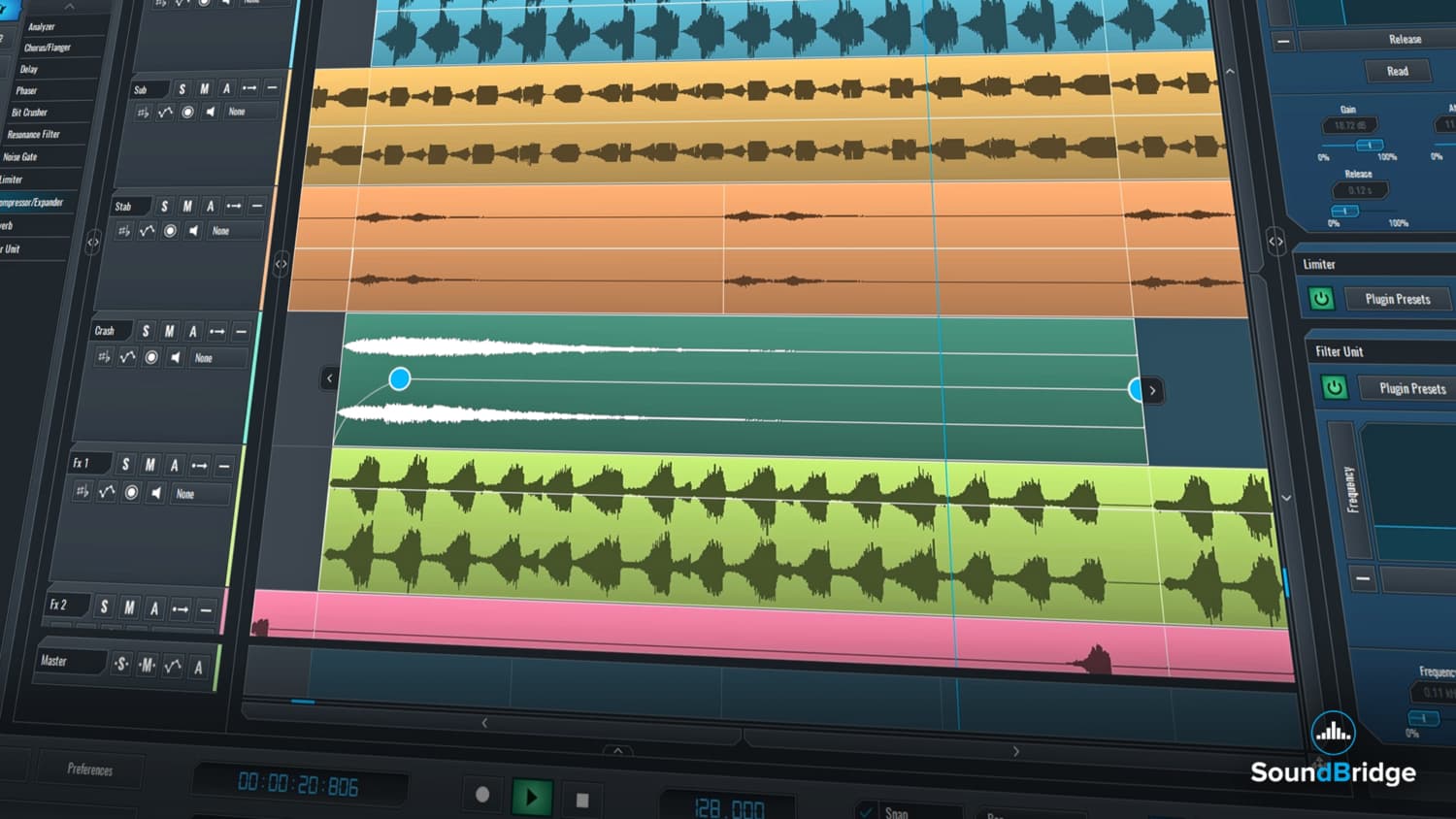
[et_pb_column type="4_4"][et_pb_text admin_label="Text"]The next two features of the SoundBridge: DAW we'll cover are “Freeze” & “Export”. By using these features, you can quickly bounce your audio or MIDI tracks, reduce your CPU usage and export your track when it's done. The “Freeze” function is somewhat more complicated, so in this article, we will guide you through all of its features to help you to understand it completely.
 By entering the “Freeze” dialogue, you can choose which tracks you want to freeze and where you want to bounce them.


 Export
Since we have covered the “Freeze” feature, let's move on to “Export”. The “Export” function can be engaged by navigating thru the “File” tab within the “Transport Bar” in the SoundBridge: DAW or simply by clicking the "Ctrl/CMD + E” key on your keyboard for exporting audio files and “Shift+Ctrl/CMD+E” for MIDI files exporting.
Export
Since we have covered the “Freeze” feature, let's move on to “Export”. The “Export” function can be engaged by navigating thru the “File” tab within the “Transport Bar” in the SoundBridge: DAW or simply by clicking the "Ctrl/CMD + E” key on your keyboard for exporting audio files and “Shift+Ctrl/CMD+E” for MIDI files exporting.

 After choosing the options mentioned above and clicking OK, a new dialogue will appear where you can title the exported file and set the folder on your hard drive where the file is going to be saved.
 Like we previously mentioned, it is possible to export MIDI clips as MIDI files in the SoundBridge: DAW. By clicking on the “Export MIDI Files” tab, we are entering another dialogue where you can choose which MIDI files from your project are going to be exported and where they are going to be saved.


 The more straightforward approach for importing MIDI and audio is by browsing for the files in the “File Browser”. Since it offers many options, we will cover it in one of the next tutorials.
[/et_pb_text][/et_pb_column]
[/et_pb_row]
[/et_pb_section]
The more straightforward approach for importing MIDI and audio is by browsing for the files in the “File Browser”. Since it offers many options, we will cover it in one of the next tutorials.
[/et_pb_text][/et_pb_column]
[/et_pb_row]
[/et_pb_section]
Freeze
You can enter the “Freeze” dialogue box in two ways. Firstly, by navigating thru the “File” tab and secondly by clicking on the “Freeze” button within the “Transport Bar”. If you look at the picture below, you'll see the “Freeze” button marked in red.
By entering the “Freeze” dialogue, you can choose which tracks you want to freeze and where you want to bounce them.
New track
Choosing to bounce to a “New Track” will bounce the audio of the selected tracks into a new audio track. What's more, you can choose if you want to bounce them to blocks, mute the original tracks that are frozen or normalize the audio on newly created tracks. This is very useful for archiving your project. If you, for example, open the project after a while, you will have all the elements still there.
File
The second option within the “Freeze” dialogue is “File”. This option will let you bounce your track in files on a specific location on your hard drive. This comes in handy for making STEMS for remixing purposes.
In Place
The third option within the “Freeze” dialogue is called “In Place”. This option will freeze the track and leave the audio playing. You can reverse this process by entering the “Freeze” dialogue again, deselecting the tracks you want to unfreeze and finally clicking OK.
Export
Since we have covered the “Freeze” feature, let's move on to “Export”. The “Export” function can be engaged by navigating thru the “File” tab within the “Transport Bar” in the SoundBridge: DAW or simply by clicking the "Ctrl/CMD + E” key on your keyboard for exporting audio files and “Shift+Ctrl/CMD+E” for MIDI files exporting.
Export Loop
By clicking on the “Export Loop” tab, you are presented with a new dialogue where you can choose between the desired file format, sample rate, and bit depth.
After choosing the options mentioned above and clicking OK, a new dialogue will appear where you can title the exported file and set the folder on your hard drive where the file is going to be saved.
Like we previously mentioned, it is possible to export MIDI clips as MIDI files in the SoundBridge: DAW. By clicking on the “Export MIDI Files” tab, we are entering another dialogue where you can choose which MIDI files from your project are going to be exported and where they are going to be saved.
Import MIDI & Import Audio
Besides “Freeze” and “Export” functions, there are functions within the “File” menu for importing MIDI and audio files. By clicking on the “Import MIDI” & “Import Audio” two new dialogues appear. They are very similar to the 2nd dialogue of the “Export Loop” function. However, instead of saving you can open files.
The more straightforward approach for importing MIDI and audio is by browsing for the files in the “File Browser”. Since it offers many options, we will cover it in one of the next tutorials.
[/et_pb_text][/et_pb_column]
[/et_pb_row]
[/et_pb_section]Education
MASTER MUSIC PRODUCTION
Expert-led courses designed to take you from fundamentals to finished tracks.

HOUSEFrom bouncy bass and solid kicks, this course teaches you the most modern House music production techniques needed to succeed and stand out.

TRAPQuit sounding like generic Trap and produce something World with hints of the Far East. Create ethnic soundscapes to put your Trap ahead of the curve.

AMBIENTProduce relaxing, sophisticated psy-influenced ambient. Psychedelic and relaxing to listen to, create meditative soundscapes to put your listeners in Zen.