

How to Sync Your DAW Over the Internet: A Practical Guide
Last Edited: Aug 12, 2026
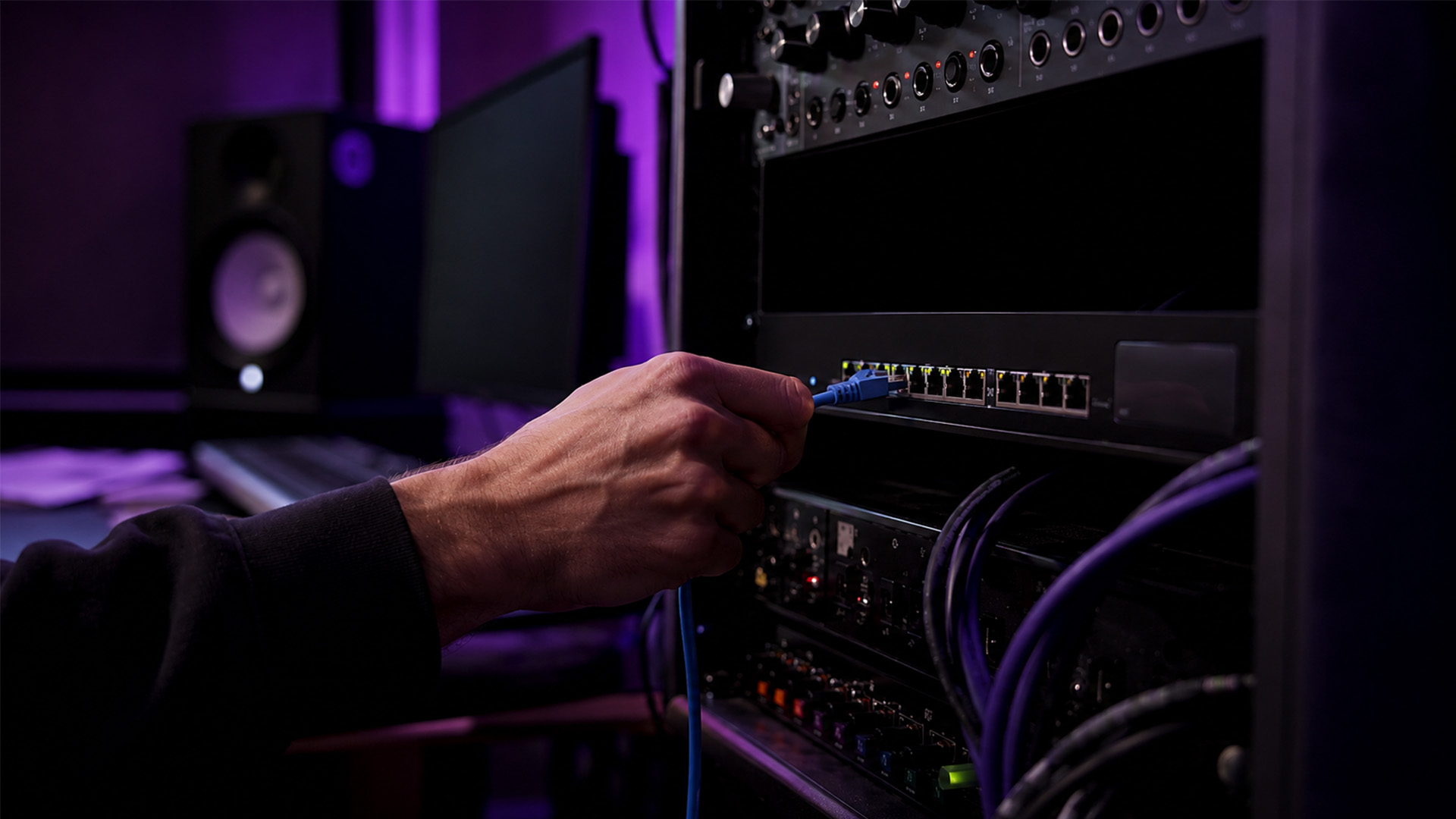
Yes, you can sync a DAW over the internet — but the right approach depends entirely on what you’re trying to do. For live jamming, you need a low-latency network audio setup on a wired fiber connection. For remote overdubs and tracking, a streaming plugin routed into your DAW is the most reliable path. For full production sharing across a team, file-based cloud sync wins every time.
Here’s the short version before we go deep:
- Live jamming: Only realistic on high-quality fiber with latency-accepting strategies. Expect compromises.
- Remote overdub/tracking: Use a streaming plugin (such as SyncStudio or Sessionwire) or a DAW with built-in remote tracking. This is where most professional sessions live.
- Full production sharing: Cloud project repos with a session-sync plugin (like DAWDrop) give you the most stability and version safety.
- Mix/review sessions: Low-bandwidth preview streams for quick approvals; high-res stems for final sign-off.
The public internet does not guarantee sub-20 ms round-trip latency. Wired connections and properly configured tools are not optional — they’re the baseline. Without them, even the best collaborative music software will let you down mid-session.
Pro Tip: Before booking any remote session, run a round-trip latency test from your actual studio machine to your collaborator’s location using a tool like PingPlotter or iPerf. A clean 20 ms average with low jitter tells you more than any vendor’s marketing claim.
Key Takeaways
Syncing a DAW over the internet is practical and professional when you align your workflow with your network reality and musical goals.
| Point | Details |
|---|---|
| Match workflow to goal | Live jamming needs sub-20 ms latency; tracking uses streaming plugins; production sharing uses file sync. |
| Wired connection first | Switch to Ethernet before every session—it eliminates the biggest source of jitter in any home studio. |
| Latency thresholds | Under 20 ms suits live play; 20–40 ms works for overdubs with latency acceptance; above 50 ms disrupts live interplay. |
| Version control matters | Use a dedicated cloud repo and a consistent file-naming convention to prevent project conflicts across collaborators. |
| SoundBridge for integrated sessions | SoundBridge offers zero-latency remote tracking, integrated talkback, and 192kHz fidelity as DAW-native features. |
Four Practical Ways to Sync DAWs Over the Internet
Remote DAW collaboration breaks down into four distinct workflows. Each one trades something — latency for stability, simplicity for fidelity, real-time feel for version safety. Knowing which trade-off fits your session is the whole game.
1. Streaming plugin / routed audio: You install a plugin (AAX, VST3, or AU) that captures your DAW’s audio output and streams it to a remote participant’s DAW in near-real time. Waves Stream and Sessionwire both follow this model. Setup is moderate, audio fidelity is high, and latency is bounded by your network rather than the plugin itself. Best for producer-client sessions, remote overdubs, and review workflows.
2. DAW-built collaboration/cloud projects: Some DAWs offer native cloud project sharing where session files, audio assets, and settings sync automatically between collaborators. This is non-real-time by design. You work, save, and your partner picks up where you left off. No latency anxiety, but no live interplay either. Ideal for cloud-based audio editing and asynchronous co-production.
3. Networked Music Performance (NMP) / low-latency approaches. This is the most technically demanding category. Tools using RTP MIDI and peer-to-peer delivery (documented in Telemidi research) can achieve 10–30 ms under ideal conditions, but jitter and last-mile quality determine whether that holds. Strategies like one-bar quantization and master-slave tempo let performers “play with” latency rather than fight it. Realistic for tight-jam genres only on excellent networks.
4. File exchange + version control: Record locally, export stems or project files, and sync via a cloud repo. DAWDrop’s SessionSync plugin automates this across DAWs, keeping audio files and session assets in sync without requiring a live connection. This is the safest choice for multi-DAW production teams and the most practical option when network conditions are unpredictable.
| Method | Latency | Setup Complexity | Audio Fidelity | Best For |
|---|---|---|---|---|
| Streaming plugin | Low–Medium | Moderate | High (24-bit/48kHz+) | Remote tracking, producer-client |
| DAW cloud projects | N/A (async) | Low | Lossless | Async co-production |
| NMP / RTP MIDI | Very low (ideal) | High | Variable | Live jamming on fiber |
| File exchange + sync | N/A (async) | Low–Moderate | Lossless | Multi-DAW teams, full production |
Can You Really Play Together in Real Time Over the Public Internet?
Honest answer: sometimes, but rarely with the consistency a professional session demands. The thresholds matter here.
- Under 20 ms round-trip: Confident live play feels natural. Most performers can’t distinguish this from a local monitor mix.
- 20–40 ms: Tight overdubs are possible with latency acceptance — you hear the delay but can compensate mentally. Genres with strong rhythmic grids (electronic, hip-hop) handle this better than jazz or classical.
- 50–100 ms and above: Live interplay breaks down. You’re no longer playing together; you’re playing at each other.
Jitter is the variable most producers underestimate. A stable 30 ms connection is far more playable than one that unpredictably swings between 10 ms and 60 ms. Jitter causes audio dropouts, sync drift, and that disorienting “rubber band” feel in a live stream. Telemidi research confirms that network jitter and last-mile quality determine practical success more than any software optimization.
Your connection type matters enormously. Fiber gives you the most consistent last-mile performance. Cable is usually fine for tracking but can spike during peak hours. DSL and mobile connections are generally too unstable for anything beyond async workflows. A cheap consumer router with no quality of service settings will introduce jitter even on a fast line.
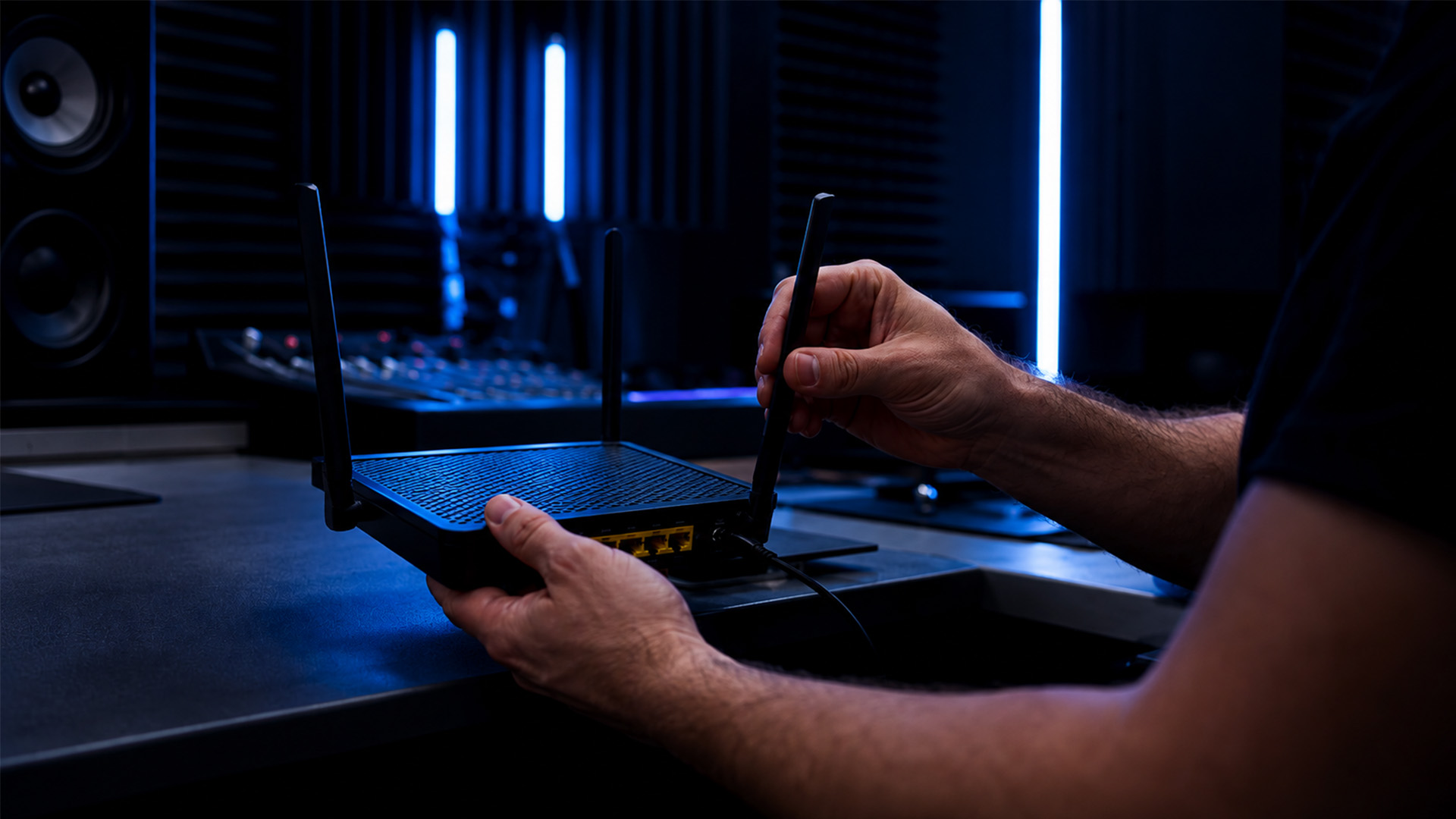
Pro Tip: Use PingPlotter (free tier available) to run a 10-minute jitter test to a server near your collaborator before every session. If you see jitter variance above 15 ms, switch to a file-exchange workflow for that session rather than fighting the stream.
Your Pre-Session Setup Checklist for Remote DAW Sessions
Run through this before every remote session. Most problems that surfaced mid-take were preventable at this stage.
- Switch to wired Ethernet. Disable Wi-Fi on your session machine entirely. A wired connection removes the single biggest source of jitter in a home studio.
- Set your sample rate and buffer size. For remote tracking, 48kHz at 128–256 samples is a solid starting point. Lower buffers reduce monitoring latency but increase CPU load — test before the session, not during it.
- Configure ASIO (Windows) or CoreAudio (Mac) routing. Route your DAW’s output to the streaming plugin’s virtual input. DAW routing basics are worth reviewing if you’re new to virtual audio routing. For platform-specific driver stability tips, the Mac vs. Windows DAW comparison covers the key differences.
- Set up talkback routing. Route your talkback mic to a separate bus, not your main mix. Your remote collaborator should hear your voice clearly without it bleeding into the recorded track.
- Check firewall and port settings. Most streaming plugins communicate over specific UDP or TCP ports. Check the plugin’s documentation and open those ports on your router. If you’re behind a corporate firewall or a strict NAT, you may need to configure port forwarding or use the plugin’s relay server option.
- Verify bandwidth. A stereo 24-bit/48kHz stream requires roughly 2.3 Mbps. Add headroom for talkback, video, and any additional participants. A 10 Mbps upstream connection is a comfortable minimum for a two-person session.
- Run a test take. Record 30 seconds of audio before the real session starts. Check for dropouts, sample-rate conversion artifacts, and sync drift. Fix problems now, not after the artist is warmed up.
- Confirm your file-sync path. If you’re using a cloud repo workflow, verify that your sync folder is set correctly and that both collaborators are on the same project version before recording begins.
Pro Tip: Set your monitoring to “direct cue” (hardware monitoring) rather than round-trip software monitoring during remote tracking. The performer hears themselves with near-zero latency while the stream handles the remote feed separately.
Diagnosing and Fixing Common Remote Session Problems
When something goes wrong mid-session, a fast diagnostic flow saves the take. Work through these in order rather than changing multiple settings at once.
Quick diagnostic flow:
- Measure your current ping and jitter to the remote endpoint (use your streaming plugin’s built-in metrics if available, or a separate tool).
- Isolate whether the problem is local (your machine or your router) or WAN-related (the connection between you and your collaborator).
- Test a single mono stream at reduced quality to confirm the connection is stable before adding tracks.
- Compare results with a WAN speed test to a neutral server — if your WAN test is clean but the session is dropping, the problem is likely the remote end.
Fixes for jitter and packet loss:
- Enable Quality of Service (quality of service) on your router and prioritize audio traffic.
- Reduce competing traffic by pausing cloud backups, streaming services, and large downloads during sessions.
- Switch your streaming plugin from TCP to UDP if the option is available — UDP handles packet loss better for real-time audio.
- Increase your buffer size by one step if dropouts persist. You’ll add latency, but you’ll stop losing takes.
DAW-side fixes:
- Freeze CPU-heavy tracks before streaming. A lighter DAW load means fewer processing-induced dropouts.
- Route the remote participant’s audio dry (no effects) and send processed stems after the session. This keeps the stream lean and gives you full control in the mix.
- If you’re using DiscoLink or a similar routing plugin, double-check that your buffer settings match on both ends — a mismatch here causes sync drift that looks like a network problem.
Sync drift specifically usually traces to a sample-rate mismatch or a clocking issue. Confirm both machines are running at the same sample rate (48kHz on both, not 44.1kHz on one and 48kHz on the other). If drift persists, check whether your audio interface is set to internal clock or external sync.
Pro Tip: If a session is degrading and you can’t fix it in two minutes, pivot. Have the remote performer record locally to a click track you’ve shared in advance, then upload the file. This “record locally and upload” strategy, documented in CDM’s remote jamming experiments, saves more sessions than any amount of buffer tweaking.
Which Workflow Fits Your Goal?
Match your musical goal to a workflow before you open a plugin or invite a collaborator. The wrong choice costs you time and frustration.
| Goal | Recommended Workflow | First Thing to Test |
|---|---|---|
| Live jamming | NMP / RTP MIDI on fiber | Round-trip latency under 20 ms |
| Remote overdub/tracking | Streaming plugin (SyncStudio, Sessionwire) | Audio fidelity and talkback quality |
| Full production sharing | Cloud repo + session-sync plugin (DAWDrop) | File sync speed and version history |
| Mix/review session | Low-bandwidth preview stream, then stems | Preview stream clarity at 128kbps |
A few practical notes on each:
- Live jamming only works if both ends have fiber and you’ve agreed on a latency-acceptance strategy. One-bar quantization (where both performers lock to a shared grid and accept the delay as part of the groove) is the most practical approach for electronic and loop-based music. For jazz or classical, the constraints are usually too tight for the public internet.
- Remote overdubbing and tracking is where streaming plugins shine. SyncStudio delivers 24-bit/48kHz audio with built-in session metrics and sync monitoring. Sessionwire’s AAX/VST3/AU plugin suite lets browser-based guests join without installing anything, which is a real advantage when your collaborator isn’t technically inclined.
- Full production sharing across a multi-DAW team is where file-sync tools like DAWDrop earn their place. You get cross-DAW compatibility, version history, and no real-time network dependency. For remote creative teams managing complex projects, the principles of remote team management used by video production teams translate directly to audio workflows.
- Mix and review sessions don’t need high-fidelity streams for approval rounds. A 128kbps preview stream is enough for a client to say “yes” or “push the bass up.” Send only lossless stems for final mix approval.
How SoundBridge Handles Remote Sync in Practice
SoundBridge is built for exactly the kind of sessions described above, with zero-latency remote tracking at its core rather than bolted on as an afterthought. Here’s what that means in practice:
- Zero-latency remote tracking: Performers hear themselves without round-trip delay, even when the session is running remotely.
- High-fidelity audio processing up to 192kHz: No quality compromise for remote sessions versus in-studio work.
- Integrated talkback and video: Director-to-musician communication is built into the session, not patched together from a separate video call.
- Bi-directional plugin and hardware control: Both the producer and the remote performer can adjust parameters in real time.
- DAW-native workflows on Mac and Windows: No separate app or browser tab required.
SoundBridge fits best in three studio scenarios: professional tracking sessions where the performer is in a different city; producer-client remote sessions where the client needs to hear and approve takes in real time; and film scoring with remote musicians, where integrated video sync is non-negotiable.
Pro Tip: SoundBridge offers both free and paid tiers. Start with the free tier to validate your network setup and routing before committing to a paid plan. A 30-minute dress rehearsal session tells you everything a spec sheet can’t.
For a deeper look at SoundBridge’s virtual collaboration workflow in a real session, the publisher’s own documentation walks through the setup step by step.
Security and Privacy When Sharing DAW Sessions Online
Streaming audio and project files over the internet exposes your unreleased music to real risks. A few practices keep your sessions protected.
Encryption matters. Confirm that your streaming plugin encrypts audio in transit. Most professional tools use TLS or DTLS for the control channel and SRTP for the audio stream. If a tool doesn’t document its encryption, treat it as unencrypted.
Guest access controls. Platforms like Sessionwire allow guests to join via a browser link. That convenience is also a vulnerability if you share the link carelessly. Use single-use session links where available, and revoke access immediately after a session ends.
Project file security. Cloud-hosted project repos should use access controls that limit who can download raw audio files. A collaborator who needs to hear a mix doesn’t need to download your unmastered stems. Separate read and write permissions where the platform allows it.
VPN considerations. A VPN adds encryption but also adds latency and jitter. For live streaming sessions, a VPN is usually the wrong trade-off. For file-sync workflows where you’re uploading and downloading project assets, a VPN is a reasonable layer of protection, especially on public or shared networks.
NDAs and session agreements. Technical security is only part of the picture. If you’re tracking unreleased material with a remote engineer or session musician, a simple NDA covering the session content is standard professional practice.
Solving NAT Traversal and VPN Issues in Remote Sessions
Jitter and packet loss get most of the attention, but NAT traversal is the problem that silently kills sessions before they start.
What NAT traversal means for you: Most home and studio routers use Network Address Translation (NAT), which hides your machine behind a shared IP address. When two machines behind different NATs try to connect directly, the connection often fails without a relay server in between. Most professional streaming plugins handle this automatically using STUN/TURN servers, but you need to know when it’s failing.
Signs of a NAT problem: the plugin connects to the server, but audio never plays, or connection attempts consistently time out even on a fast network.
Fixes:
- Temporarily enable UPnP on your router so the plugin can automatically open ports. Turn it off again after the session for security.
- Configure manual port forwarding for the specific ports your plugin uses. Check the plugin’s documentation for the exact port numbers.
- If direct peer-to-peer fails, switch to the plugin’s relay server mode. You’ll add a small amount of latency, but the connection will be stable.
VPN and remote sessions: Running a VPN while streaming audio is almost always counterproductive for live sessions. The added encryption overhead increases latency and jitter. If your studio network requires a VPN for security reasons, test the latency impact before a real session. For file-sync workflows, a VPN is more acceptable since you’re not time-sensitive.
Firewall rules: Windows Defender and macOS’s built-in firewall can block plugin communication without any obvious error message. Add your streaming plugin as an explicit exception in your firewall settings, and confirm the rule applies to both private and public network profiles.
Managing Version Control When Multiple People Edit Remotely
Version conflicts in a shared DAW project are the remote collaboration equivalent of two guitarists playing in different keys. Preventable, but only if you set the rules before the session.
Name your files with intent. Use a consistent naming convention from day one: ProjectName_Version_Date_Initials.ext. A file named BeatSession_v03_20260312_JK.als is unambiguous. A file named final_FINAL_2_USE THIS ONE.als is a disaster waiting to happen.
Use a dedicated cloud repo. Tools like DAWDrop are built specifically for this. They track changes, maintain version history, and prevent two collaborators from overwriting each other’s work. General-purpose file sync tools (Dropbox, Google Drive) work for simple projects but lack the session-aware conflict resolution that audio workflows need.
Establish a “one editor at a time” rule for live sessions. When two people are actively editing the same project simultaneously, conflicts are almost guaranteed without a locking mechanism. Assign clear ownership: the producer owns the arrangement, the mix engineer owns the mix session, and neither edits the other’s file without a handoff.
Commits stem from project files, not just project files. After each significant session, export stems to a shared folder alongside the project file. If a project file becomes corrupted or a version conflict creates an unresolvable mess, you can always rebuild from stems. This mirrors the version control discipline that remote video production teams use for multi-editor projects.
Pro Tip: Keep a simple session log in a shared note (Notion, Google Docs) that tracks who edited what and when. It takes 60 seconds per session and has saved countless hours of “wait, which version did we approve?”
What Remote Sessions Have Taught Me About Choosing the Right Workflow
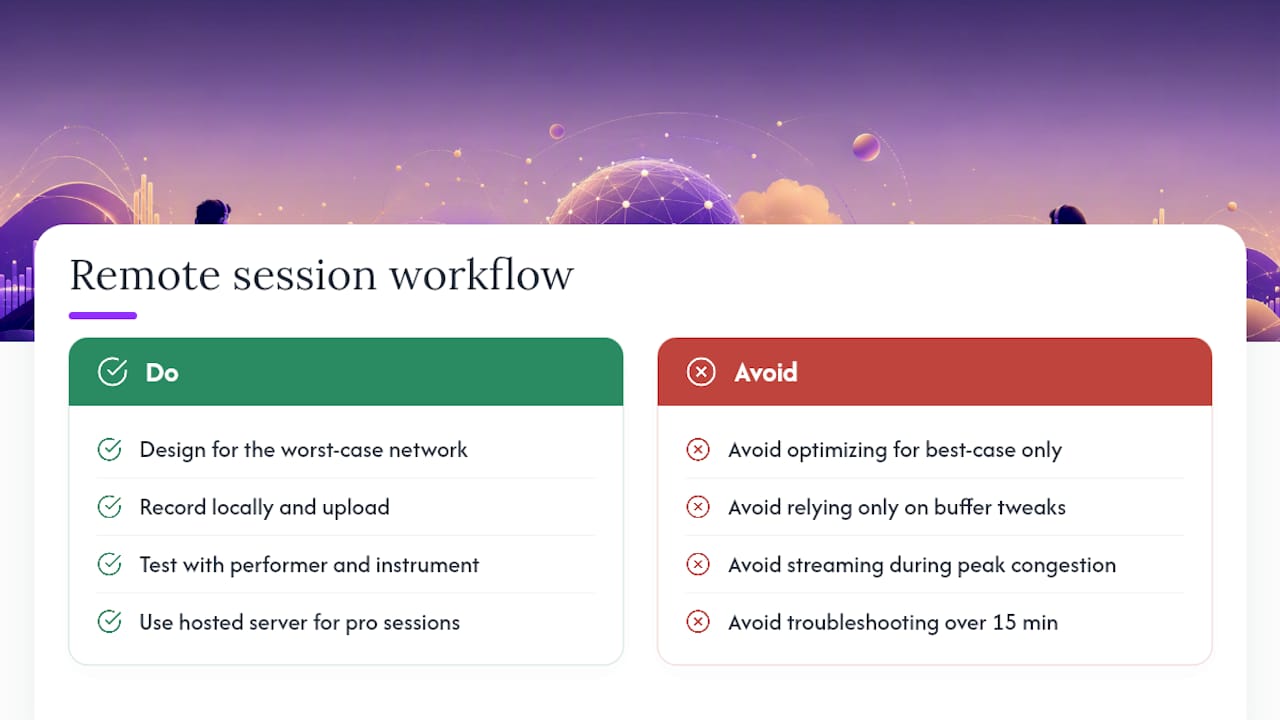
The most common mistake producers make when setting up remote DAW collaboration is optimizing for the best-case scenario. You test on a Tuesday afternoon with a clean network; everything works at 18 ms, and you book a session with a vocalist in another city. Then Friday evening arrives, ISP traffic peaks, and you’re suddenly at 70 ms with jitter spikes. The session falls apart.
The rule I’d give any producer starting with remote work: always build your workflow around your worst-case network, not your best. If your connection can’t maintain a stable stream during peak hours, default to recording locally and uploading. It’s less exciting than live streaming, but it produces a clean take every time.
A second rule: test with the actual performer and their actual instrument before the real session. A guitarist with a high-gain amp and a noisy room creates very different streaming challenges than a vocalist with a condenser mic in a treated space. What works for one doesn’t automatically work for the other.
The third rule is about when to stop fighting the technology. If you’ve spent more than 15 minutes troubleshooting a live stream mid-session, pivot to file exchange. Send the performer a click track and a rough mix, have them record locally, and upload the file. This approach, explored in CDM’s remote-jamming research, has rescued more sessions than any other buffer tweak. The goal is a great recording, not a perfect real-time setup.
One more consideration: if you’re running regular professional remote sessions, a hosted server or a professional remote-engineer service is worth the cost. The latency improvement from a dedicated server with a clean network path is measurable, and the time you save on troubleshooting quickly pays for itself.
SoundBridge Gives You a DAW Built for Remote Tracking From the Start
Most producers piece together a remote workflow from separate tools: a streaming plugin here, a video call there, a cloud sync folder somewhere else. SoundBridge replaces that patchwork with a single DAW where zero-latency remote tracking is native, not an add-on.
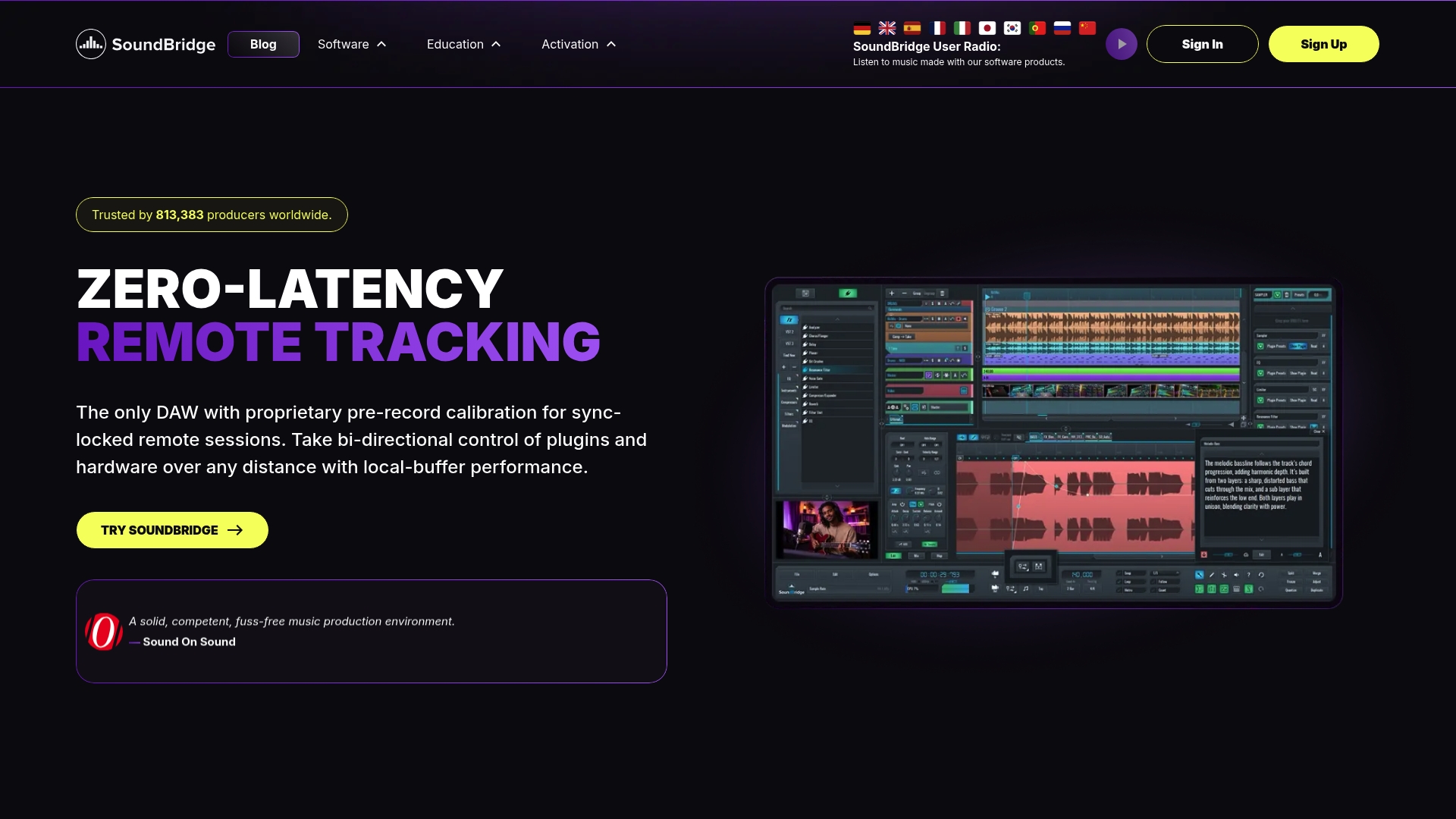
You get high-fidelity audio up to 192kHz, integrated talkback and video for real director-to-performer communication, and bi-directional plugin control so both sides of the session stay in sync. It runs on Mac and Windows, with a free tier to test your setup before committing. Whether you’re tracking a vocalist across the country or scoring a film with remote string players, SoundBridge gives you the tools to do it without the setup friction. Ready to test it in your own studio? Start with the free plan and run a 30-minute dress rehearsal session before your next booking.
Sources
- Midi
- SyncStudio
- Sessionwire — The Only Virtual Studio for Music Professionals
- Waves Stream – Remote Audio Collaboration Plugin & Web Service
- DAWDrop — Where music gets built
Recommended
MASTER MUSIC PRODUCTION
Expert-led courses designed to take you from fundamentals to finished tracks.

HOUSEFrom bouncy bass and solid kicks, this course teaches you the most modern House music production techniques needed to succeed and stand out.
TRAPQuit sounding like generic Trap and produce something World with hints of the Far East. Create ethnic soundscapes to put your Trap ahead of the curve.

AMBIENTProduce relaxing, sophisticated psy-influenced ambient. Psychedelic and relaxing to listen to, create meditative soundscapes to put your listeners in Zen.