

Velocity Layers in a Sampler: Setup, Settings and Tips
Last Edited: Oct 26, 2026
A velocity layer is a separate recording of the same note played at a different strength: soft, medium, loud. Your sampler listens to how hard you hit each MIDI note and picks the matching recording. That is why a good virtual snare snaps when you hammer it and whispers when you brush it, instead of just getting louder or quieter.
This guide shows you how velocity layers work, how to set the ranges, what to do about the seams between layers, and how to stop repeated notes from sounding like a machine. Grab an instrument and follow along.
TL;DR
- Velocity layers are different samples of one note, each assigned to a slice of the 0 to 127 MIDI velocity range. Hit harder, and the sampler switches to a harder recording.
- Three to five layers cover most drums and mallets. Split the range evenly first, then nudge the split points by ear.
- Layers alone do not fix repetition. Pair them with round robin and a touch of random variation.
- For sustained instruments like strings, velocity picks the starting character. Use CC1 and CC11 for movement after that.
What Velocity Layers Actually Do
MIDI velocity is a number from 0 to 127 that describes how forcefully a key or pad was struck. Many producers treat it as a volume knob. Its more valuable job, as Versilian Studios points out in its sampling write-up, is to control timbre: brightness, harmonics, and articulation.
Think about a real snare. A light tap is thin and papery. A rimshot is bright, cracking, and full of overtones. Turning the light tap up in volume will never give you the rimshot. You need a different recording. That is the whole idea behind velocity layers: the instrument changes character, not only level.
In a sampler, each layer is a sample assigned to the same key but limited to its own velocity window. Play at velocity 30, and you might hear the soft sample. Play at 100, and you hear the hard one.
Velocity Layers, Round Robin and Articulations
These three terms get mixed up, so here is the short version. Sample libraries are usually described by a few independent dimensions, and Versilian Studios lists them side by side.
| Dimension | What it changes | Triggered by |
|---|---|---|
| Velocity layers | Intensity and tone of a note | How hard you play |
| Round robin | Which take of the same note plays | Repeated hits, in rotation |
| Articulations | The playing technique (staccato, tremolo, muted) | Key switch, CC, or separate patch |
| Pitch mapping | Which sample covers which key | Note number |
A big instrument uses all four at once. A single hi-hat might have five velocity layers, four round-robin takes per layer, and separate closed and open articulations.
Why Velocity Layers Are Worth the Setup
The benefits show up the moment you play a part you did not hand-edit.
- Natural dynamics. Soft notes sound soft because you played them softly, not because you turned them down.
- Expressive playing. Your keyboard or pad technique translates directly into tone. Many players find they stop fighting the instrument.
- Less editing. A part recorded with a decent touch sounds good straight away. You spend time on arrangement, not on fixing each hit.
- Believable drums and percussion. Ghost notes, accents and fills carry the right character automatically.
If your current instrument only changes volume with velocity, you are hearing the difference between a single-sample patch and a multisampled one.
How to Set Up Velocity Layers in a Sampler
The exact buttons differ between samplers, but the workflow is the same everywhere. For a visual walk-through of zone mapping in one popular sampler, this multisample mapping tutorial shows how to drag the switch point between lower and upper zones.
Step by step
- Prepare your samples. Name files clearly, for example
snare_soft,snare_med,snare_hard. Clean names save you from mapping the wrong file later. - Load them onto the same key. Drop every layer for one note onto the same root key so they stack in the zone editor.
- Set each velocity range. Give each sample its own low and high velocity. With three layers, a clean start is 1 to 42, 43 to 85, and 86 to 127.
- Check for gaps and overlaps. A gap means some velocities play nothing. An accidental overlap means two samples play at once and the note gets louder and phasey.
- Play it. Use your real controller, not a mouse. Play slow scales, then fast ones, at different strengths.
- Move the split points by ear. Where does the tone jump too early or too late? Drag the boundary until quiet and loud playing both feel right.
- Add round robin for any note you will repeat, such as hats, snares, plucks, and staccato strings.
How many layers do you need?
The options range widely: anywhere from 2 to 127 layers, or just one. More is not automatically better. A few guidelines:
- 2 to 3 layers: fine for simple percussion, shakers, pads, and utility sounds.
- 4 to 6 layers: a sweet spot for snares, toms, mallets, piano-like sounds and plucked instruments.
- 8 or more: worth it for hero instruments where the performer lives on the dynamic edge, such as solo piano or a lead drum kit.
More layers means more recording, more disk space, and more memory. Plan accordingly if you are building your own.
Velocity Layer Settings That Matter
When readers search for velocity layer settings, they usually mean one of these five controls.
Velocity Range per Zone
These are the low and high limits for each sample. Keep ranges contiguous. If you want a layer to dominate, give it a wider window. If you want soft playing to feel more detailed, give the quiet layers narrower slices at the bottom of the range.
Crossfade Between Layers
A hard switch is fine for drums, where the change from soft to hard really is a different strike. For instruments with a continuous tone, a crossfade blends neighboring layers over a small velocity span. The result is a smoother gradient with no audible step. Use a short crossfade first. If it's too wide, every note becomes a blend of two samples, which can sound muddy.
Velocity Curve
Not every controller feels the same, and not every player hits the same. A velocity curve reshapes how incoming values map to the sampler. If you can rarely reach the top layer, bend the curve so your normal hard playing lands higher. If everything triggers loud, bend it the other way. This is a recognized quirk of MIDI velocity: implementations vary a lot between devices, so tune the curve to your hardware instead of assuming a standard.
Velocity to Volume Amount
Once samples are layered, you often need less velocity-to-volume. The recorded layers already carry the loudness difference. Pushing the volume response on top can exaggerate the jump between layers.
Velocity to Filter and Other Destinations
Velocity does not have to stop at sample choice. Routing it to filter cutoff is a classic. The Melatonin write-up on MIDI velocity argues that mapping velocity to volume alone sounds clunky on synths, while mapping it to brightness better imitates how real instruments change color. A sound-design forum thread suggests a similar trick: an LFO modulated by velocity, so quieter notes are darker and louder notes brighter. It is a cheap way to add depth to a sample set that only has a couple of layers.
Keep Your Layers Level-Matched
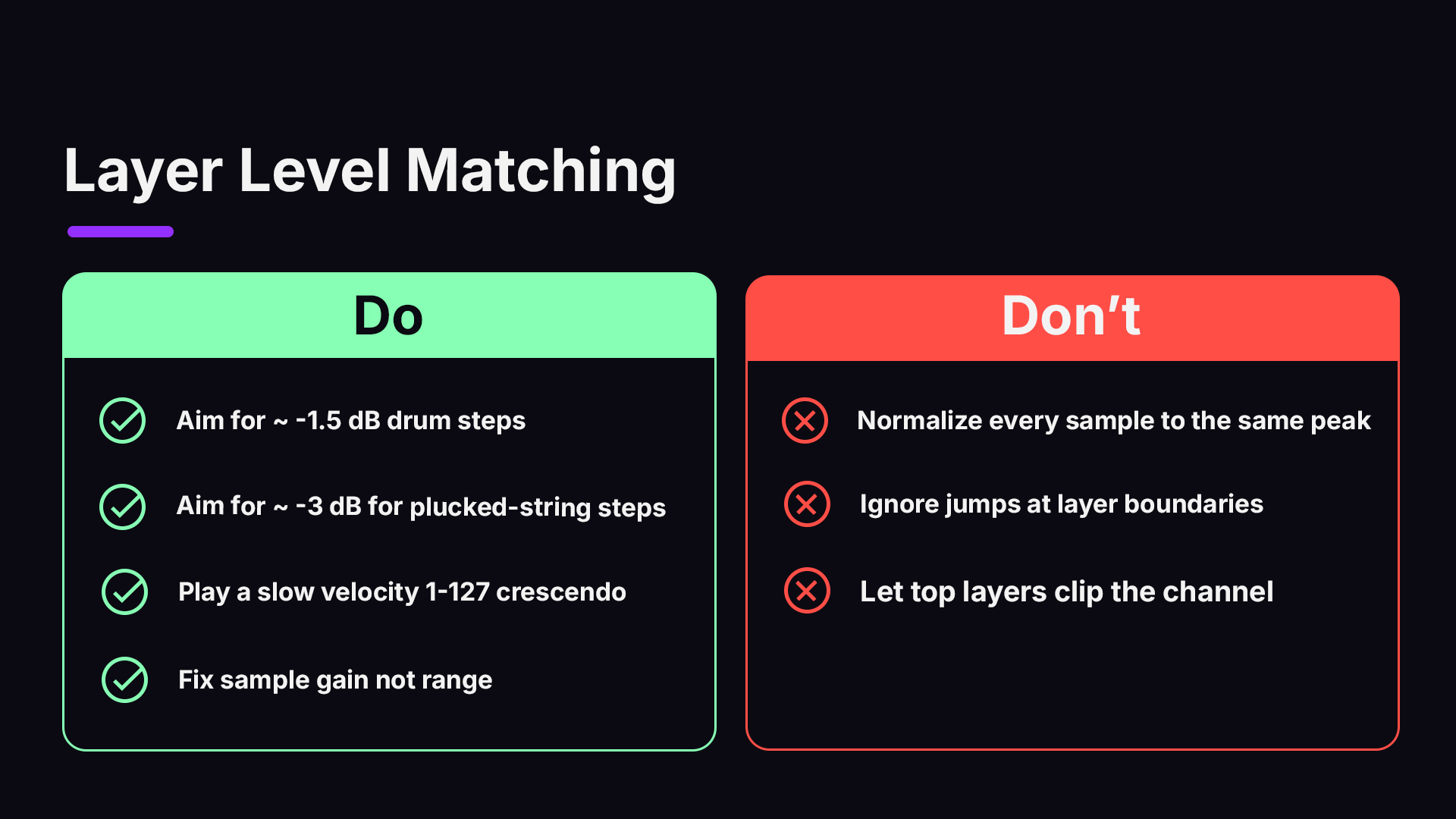
If you record or edit your own multisamples, level management decides whether the layers feel like one instrument. Versilian Studios recommends aiming for roughly 1.5 dB steps between layers for drums and mallets, and about 3 dB for plucked strings. It also warns against normalizing every sample to the same peak, which erases the natural relationship between hitting harder and getting louder.
A simple check: play a slow crescendo from velocity 1 to 127 on one key. It should rise smoothly. If you hear a sudden jump in loudness at a layer boundary, one sample is too hot or too quiet. Fix the sample gain, not the range.
Watch your peaks while you do it. A loud top layer layered on a busy kit can clip your channel, so keep a meter in view. Our guides on VU metering and audio clipping cover how to read levels and avoid distortion.
Beat the Machine-Gun Effect
Even with five layers, hitting the same note repeatedly can sound robotic. Your ear picks up that every strike is identical. MusicRadar’s guide to velocity notes that designers use multisampling with velocity splits so instruments behave like the real thing, and the fix for repetition is combining those layers with round robin, where the sampler cycles through different recordings of the same note.
Turn on round robin first for hats, snares, shakers, repeated plucks, and fast staccato lines. If you want to see how it works in our DAW, read Unlocking Natural Sound with Round Robin Sampling in SoundBridge.
Add Small Random Variation
Humans are never exact. Icon Collective’s drum humanizing tutorial shows that editing every note velocity by hand is slow, and that a velocity randomizing device is a faster route. The same idea works in any sampler or sequencer:
- Randomize note velocity by a small amount, a few points either way.
- Shift note start times by a few milliseconds.
- Add a slight random offset to filter cutoff.
Keep it subtle. The goal is a hit that feels alive, not a hit that feels sloppy. Small, tasteful randomness also helps when you build a beat and want it to feel less mechanical, especially on synth-driven hip-hop patterns where every note would otherwise land identically.
Velocity Layers for Different Instruments
Drums and Percussion
This is where velocity layers shine. Each hit is a short, distinct event, so a velocity switch sounds natural. Use four to six layers on snares and toms, a few on kicks, and plenty on hi-hats, where the tonal difference between a light tick and a hard hit is large. Try our bass drum instrument to hear how a big orchestral drum responds across the range.
Mallets and Plucked Instruments
Mallets like the glockenspiel and vibraphone have a bright attack that grows harder and more metallic as velocity rises. They are ideal for learning, because the layers are easy to hear. Plucked strings behave similarly, with larger level steps between layers than drums, as noted above.
Keys
Piano-style sounds benefit from many layers, since pianists live in the space between pianissimo and fortissimo. Explore our keyboard instruments and play soft chords, then dig in.
Strings, Brass and Voices
Sustained instruments are the exception. A bowed note can swell, fade, or change color while held, and velocity is measured only at the moment you press the key. Orchestral programming guides, such as this ultimate guide to orchestral mockups, say velocity mainly selects the articulation or starting layer, while continuous controllers do the expressive work.
The usual split, described in Sound On Sound’s explanation of virtual instruments, is CC1 for dynamics and timbre and CC11 for expression. Those controllers crossfade between layers while the note rings. Relying on velocity only gives you volume jumps instead of smooth growth.
So for realistic orchestral strings, keep velocity moderate for short notes and draw CC curves for long ones. The same logic applies to string instruments and the human voice. If you want to add motion on top, pitch bend automation is another tool for lifelike melodies.
Our Perspective: Play It, Then Trust Your Ears
We build SoundBridge for people who want to get from idea to finished track without wrestling the tools. When it comes to velocity layers, we see the same pattern again and again. Producers spend an hour on perfect mapping, then never test it with a real controller.
Our advice is simple. Start with the fewest layers that do the job. Set even ranges. Play the part the way you would on a real instrument. Only then adjust. Numbers on a screen tell you what the sampler does, but your ears tell you whether it works.
Second, treat velocity as one voice in a chorus. Round robin, small random shifts, filter modulation, and CC automation all share the work of realism. No single one has to be perfect. Together they turn a stack of samples into a performance.
Third, remember collaboration. When you record a part in a session with another musician, the velocity data travels with the MIDI. A drummer in one city can play the pads, and a producer in another can reshape the layers afterward. That is why we care about studio-accurate remote sessions, and why you can read about our virtual collaboration workflow.
— Wake
Try It in SoundBridge
SoundBridge is a DAW for Mac and Windows with built-in effects, flexible MIDI and audio routing, and a modular, easy-to-learn interface. You can easily load an instrument, play it with your own touch, and hear what velocity does. Check our licensing options at soundbridge.io. If you are new to the whole environment, our guide to what a digital audio workstation is is a good first stop, and audio editing essentials will help you tidy samples before mapping.
Common Mistakes and Quick Fixes
| Problem | Likely cause | Fix |
|---|---|---|
| Silence at certain velocities | Gap between ranges | Make ranges contiguous from 1 to 127 |
| Notes suddenly louder and thicker | Overlapping zones | Remove the overlap or use a controlled crossfade |
| Sudden volume jump at a boundary | Sample levels not matched | Adjust sample gain by small steps |
| Top layer never triggers | Controller feels light | Reshape the velocity curve |
| Repeated notes sound robotic | Single take per layer | Add round robin and slight randomization |
| Strings sound stepped | Relying on velocity for dynamics | Use CC1 and CC11 for movement |
| Everything sounds the same | Velocity only mapped to volume | Route velocity to filter or sample choice |
A useful habit is to test each fix on a short loop: eight bars of repeated notes at varied strengths. If the loop sounds natural at that scale, a full track will too.
A Quick Practice Exercise
Try this in about ten minutes.
- Pick a snare with at least three layers.
- Program a four-bar pattern with every note at velocity 100.
- Listen. It will sound stiff.
- Lower the ghost notes to 30-50 and keep backbeats near 100-120.
- Switch on round robin.
- Add a small random velocity offset.
- Compare with step 2.
The difference between the first and last version is the benefit of velocity layers in one demo. You will hear it immediately.
FAQ
What is the difference between velocity and volume?
Velocity measures how hard a note was struck, on a scale from 0 to 127. Volume is how loud the channel is. A sampler may use velocity to adjust volume, but with velocity layers it can also use it to choose a different recording, changing both tone and level.
How many velocity layers should I use?
Three to five is plenty for most drums, mallets, and plucked sounds. Use more only when the instrument is front and center, like a solo piano. Extra layers cost memory and recording time, so add them where you can hear the benefit.
Do velocity layers work for synthesizers?
Yes, though synths generate sound rather than replaying recordings. You can get a similar result by mapping velocity to filter cutoff, envelope amount, or oscillator mix. Mapping velocity only to volume tends to sound flat, so brightness is the better target.
Why do my strings sound jumpy when I change velocity?
Velocity is read only when the note starts, so it cannot shape a sustained sound. Use CC1 for dynamics and CC11 for expression to move smoothly between layers while the note is held, and keep velocity for note starts and short notes.
How do I stop repeated notes from sounding the same?
Combine layers with round robin so the sampler rotates through different takes, then add a small random variation to velocity and timing. Together, these remove the identical-hit pattern your ear catches.
Sources
- Sampling: Behind the Scenes, Versilian Studios
- Velocity Layers, Sampling Assistant Docs
- Doing my synthesizer homework: The quirks of MIDI Velocity, Melatonin
- 10 ways to get more out of velocity, MusicRadar
- How Virtual Instruments Work, Sound On Sound
- How to Humanize Your Drums, Icon Collective
- Avoiding the machine gun effect, Sound Design Stack Exchange
- Mapping Multisampled Instruments, MusicTech
- Ultimate guide to orchestral mockups, Mod Wheel
Recommended
MASTER MUSIC PRODUCTION
Expert-led courses designed to take you from fundamentals to finished tracks.

HOUSEFrom bouncy bass and solid kicks, this course teaches you the most modern House music production techniques needed to succeed and stand out.

TRAPQuit sounding like generic Trap and produce something World with hints of the Far East. Create ethnic soundscapes to put your Trap ahead of the curve.

AMBIENTProduce relaxing, sophisticated psy-influenced ambient. Psychedelic and relaxing to listen to, create meditative soundscapes to put your listeners in Zen.